
Sign-in and Two-Factor
Choose which sign-in methods your org accepts and how two-factor authentication works for your team.
Overview
Two settings shape how your team signs in:
- which sign-in methods your org accepts
- whether two-factor authentication is required
Both live in ArchAgents Portal under Settings -> Sign-in methods and Settings -> 2FA policy. The CLI follows whatever the portal says, so what teammates see at sign-in always matches the policy your admins set.
The sign-in flow end to end
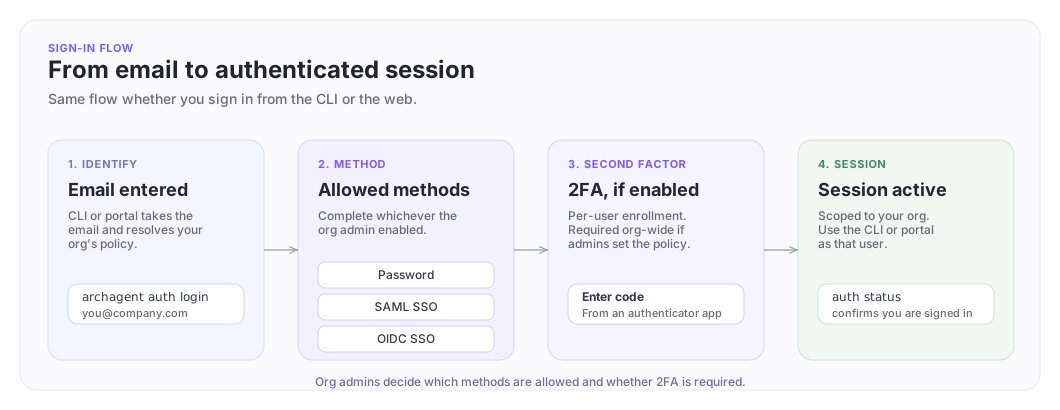
One picture for both surfaces. The CLI and the portal walk teammates through the same four stages.
Sign-in methods
Your org can accept any of:
- Magic link (one-time link sent to a teammate's email). On for new orgs by default.
- Password (email + password).
- Google (sign in with a Google account).
- GitHub (sign in with a GitHub account).
- Stripe (sign in with a Stripe account, for orgs whose people already live in Stripe).
- SAML SSO (Okta, Azure AD, or any SAML 2.0 IdP).
Open Settings -> Sign-in methods in the portal and toggle each method on or off. Most teams start with magic link only and add password, Google/GitHub, or SAML when they need them.
When a teammate signs in, the CLI and portal route them through the methods you have enabled. They don't need to know which option to pick; the available methods match your policy.
Two-factor authentication
Enable 2FA on your own account
Open Settings -> Security in the portal and follow the Two-factor authentication enrollment flow. Once enabled, every sign-in adds a one-time code step after the password or SSO challenge.
Use any standard authenticator app, 1Password, Authy, Google Authenticator, the password manager built into your browser, etc. ArchAgents uses the standard TOTP format, so existing tooling works without setup.
Require 2FA for everyone in your org
Org admins can require 2FA across the entire organization from Settings -> 2FA policy.
When the policy is on:
- members who have not yet enrolled are prompted to enroll on their next sign-in
- members who have enrolled cannot disable 2FA on their own account
- new sign-ins from any surface (portal, CLI, SDK with browser flows) ask for the second factor
This is the recommended default for any production deployment.
CLI sign-in with 2FA
archagent auth login handles the second factor automatically. After the password or SSO step, the CLI prompts for the one-time code and continues. There is nothing extra to configure on your machine.
archagent auth login you@company.com
# CLI walks you through password / SSO, then 2FA, then opens the session
archagent auth status
If your org enforces 2FA and you have not yet enrolled, the CLI sends you to the portal to complete enrollment before the session is established.
Where to go next
- Organizations: roles, retirement, and cross-company boundaries.
- CLI: the full terminal sign-in and project-linking flow.
Have feedback?
Help us make this page even more useful.
Tell us what you'd like to see expanded, which examples would help, or what workflow you want covered next. Every message gets read.