
Sandboxes
Isolate test data from production so you can develop, test, and demo without affecting real users.
Overview
A sandbox is a separate copy of your project's runtime data. Same agents, same routines, same configs, but its own threads, users, messages, and credentials. Anything you do inside it stays inside it.
You'll reach for one when you want to:
- run a new routine against realistic data before it touches production conversations
- give a customer-facing demo without polluting your live thread history
- let different environments (staging, scratch, customer-specific) coexist without stepping on each other
Every new project ships with a default sandbox called Test. Start there.
A concrete example
Imagine you are building a billing support agent.
Before you let it touch production conversations, you can:
- activate a sandbox
- create a demo user
- create a billing test thread
- send a realistic message
- inspect the result and any captured emails
That gives you a safe way to answer the questions that matter:
- does the agent respond correctly?
- do the routines trigger when expected?
- does the knowledge access look right?
- do email and notification flows behave properly?
The test-to-production boundary
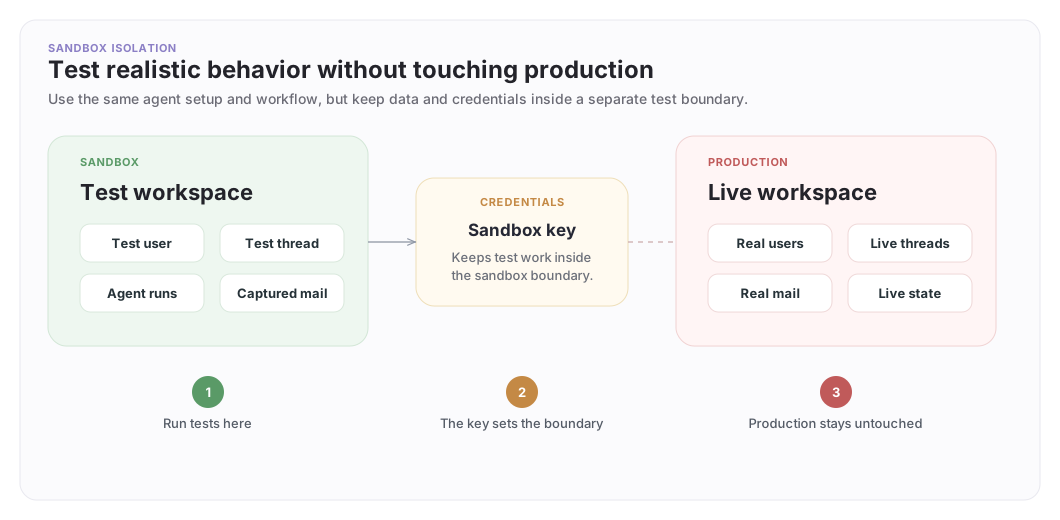
Treat a sandbox as the place where behavior becomes believable before it becomes real. The same setup patterns apply; only the data boundary changes.
Creating sandboxes
Create additional sandboxes through the CLI or ArchAgents Portal:
Slugs must be lowercase alphanumeric with hyphens, 2-100 characters, and unique per project. They cannot start or end with a hyphen.
# CLI
archagent create sandbox -n "Staging" -s staging
Access in sandboxes
Each sandbox has its own access credentials, separate from production:
- client-side work uses sandbox publishable keys
- server-side setup uses sandbox secret keys
- sandbox credentials only reach sandbox data, not production
Create and revoke sandbox credentials through the CLI or ArchAgents Portal as needed for test environments and demos.
If the work is test-only, use sandbox credentials so the resulting data stays in the sandbox.
How sandboxes behave
When you work inside a sandbox, the platform does four simple things:
- It knows which sandbox you selected.
- It keeps reads inside that sandbox automatically.
- It saves new data back into that sandbox automatically.
- It keeps that work separate from production and other sandboxes.
Your code does not need a different logic path for sandbox versus production. The main difference is which sandbox or credential you choose.
Production credential → production workspace
Sandbox credential → selected sandbox workspace
This separation applies across the main things teams care about, including users, teams, threads, messages, agents, configs, integrations, automations, files, and secrets.
You do not need one mental model for testing and a different one for production. The main difference is which environment you selected.
Sandbox emails
Emails sent within a sandbox are captured instead of delivered. This lets you test email flows (registration, notifications, magic links) without sending real emails.
Viewing captured emails
# CLI
archagent list sandboxmails --sandbox dsb_abc123
archagent describe sandboxmail sem_abc123 --sandbox dsb_abc123
Cleaning up
archagent delete sandboxmail sem_abc123 --sandbox dsb_abc123
archagent delete sandboxmails --sandbox dsb_abc123 --all
Using sandboxes with the CLI
The CLI can be pointed at a sandbox so later commands operate on sandbox data:
# Activate a sandbox by id, and switch back with `activate production`
archagent activate sandbox <sandbox_id>
archagent activate production

# List sandboxes, active sandbox is marked with *
archagent list sandboxes
When a sandbox is active, later CLI commands create and inspect data inside that sandbox until you switch back.
For day-to-day development, the common loop is:
- activate the sandbox
- create or update the agent
- run a test thread
- inspect the result
- clean up or reset as needed
ArchAgents Portal
ArchAgents Portal at https://archagents.com provides a visual interface for sandbox management under Project → Sandboxes:
- Create and manage sandboxes
- Create the credentials each sandbox needs
- See whether each sandbox is active or revoked
- Revoke access with confirmation
Design patterns
Integration testing
Use a sandbox to run automated tests without affecting production:
- Create a sandbox (or use the default "Test" sandbox)
- Use the sandbox publishable key in your test suite
- Create users, agents, and threads, all isolated to the sandbox
- Verify email flows by checking captured sandbox emails
- Clean up by deleting sandbox emails between test runs
This is the right pattern when you want realistic end-to-end testing without touching production.
Demo environments
Create a named sandbox (e.g., demo) with pre-seeded data for customer demos. Each demo sandbox is isolated, so you can reset it independently without touching production or other sandboxes.
This works well when you want a stable environment for sales, solutions, or implementation walkthroughs.
Staging pipeline
Use sandboxes as lightweight staging environments:
testsandbox, automated test suitestagingsandbox, manual QA and review- Production, the main project workspace
All three share the same project configuration but have completely separate user data, threads, and state.
Exercise new agent behavior in test and staging first. Promote to production after the end-to-end behavior holds up against realistic data.
Have feedback?
Help us make this page even more useful.
Tell us what you'd like to see expanded, which examples would help, or what workflow you want covered next. Every message gets read.