
CLI
The terminal workflow for building and operating agents.
Overview
The ArchAgents CLI is the fastest way to build and operate agents from the terminal.
Use it to:
- sign in and connect a project
- deploy agents from YAML templates
- create conversations and send test messages
- inspect runs, threads, tools, and knowledge
- manage configs, sandboxes, and installations
If you use a coding agent (Claude Code, Codex, Cursor), the CLI is the primary setup path.
Fastest path
If you want to get from zero to an agent you can test quickly, do this:
- install the CLI
- sign in
- connect the current project with
archagent init - create or deploy an agent
- open a thread and send it a message
The rest of this page expands those steps.
How to think about the CLI
Teams use the CLI in one of three ways:
| Mode | What you are doing |
|---|---|
| First-run setup | Link a repo and create your first testable agent |
| Daily development | Inspect, update, and test agents, routines, threads, and sandboxes |
| Repeatable deployment | Keep configs in files and deploy them in a reviewable way |
--json is a global flag. Scripted examples often place it before the verb, as in archagent --json create agent....
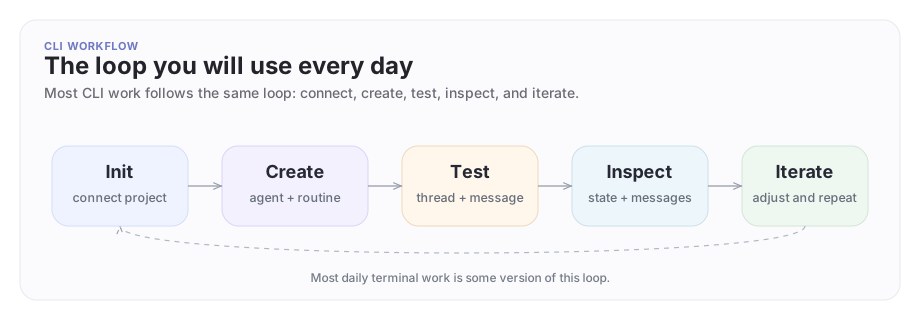
The CLI loop
Connect the repo, create or update the object, test it, inspect the result, then make the next change.
1. Install the CLI
GitHub Releases are the public distribution path for the CLI.
macOS
brew install ArchAstro/tools/archagent
Linux
curl -fsSL https://archagents.com/install.sh | bash
Windows
irm https://archagents.com/install.ps1 | iex
If your organization doesn't allow piped installers, download the release assets from GitHub Releases and inspect them before running locally.
Verify the install:
archagent --help
2. Sign in
archagent auth login you@company.com
archagent auth status
Pass your work email as a positional argument. The CLI uses it to resolve your organization's sign-in configuration (password, SSO, or SAML) before opening the browser so you land on the right sign-in flow.
If your organization is on an app other than the default agentnetwork, add --app <slug>:
archagent auth login you@company.com --app <app-slug>
The CLI opens a browser so you can complete sign-in and authorize the local session.
Use archagent auth logout when you want to clear the current session.
3. Connect the current project
cd my-project
archagent init
archagent init connects the current directory to ArchAgents and writes an archagent.json file in the project root.
That file tells the CLI which project and config directory the current workspace should use.
In these docs, a project is your local linked workspace. An app is the ArchAgents application that workspace points at.
4. Install a starter sample (fastest)
If you want a working agent in front of you in seconds, browse the curated sample catalog and install one:
archagent list agentsamples
archagent install agentsample <slug>
install agentsample deploys the sample's agent into the linked project and runs the steps declared in the sample's sample.yaml. The result is a real, editable agent, useful as a starting shape you can iterate on, not a fixed demo.
Pin a version for reproducible installs (<slug>@v0.3.2), or pass --name "Acme Support" to override the default name. The agent is editable from the moment it lands; nothing about a sample install locks you into the original shape.
If you'd rather author your agent from scratch, continue with the next section.
5. Create your own agent
Repeatable setup: deploy from a template
Write an agent.yaml in your project and deploy it in one command:
archagent deploy agent agent.yaml --name "Support Agent"
This is the recommended path for agents you intend to keep. The template is reviewable, reusable, and keeps your agent config in version control alongside your code.
Agent templates should include an explicit primary model. Start with:
model: openrouter/anthropic/claude-sonnet-latest
Use archagent help models or archagent list aimodels to see valid
provider-specific values.
Quick experiment: create an agent directly
If you want to understand each piece individually, you can create an agent directly:
archagent create agent -n "Support Agent" -k support-agent \
 -i "You help users resolve billing and support problems with short, concrete answers."
Here -k sets the agent's lookup key: the key you can search for and reuse in scripts and CLI flows.
The quickest proof that this is an AI agent, not just a saved object, is one direct session:
archagent create agentsession --agent <agent_id> \
 --identity "Help a user resolve billing questions. Ask one clarifying question if needed."
archagent exec agentsession <session_id> \
 -m "How should we handle invoice failures?"
If you want the agent to react automatically inside the product, add a routine:
archagent create agentroutine --agent <agent_id> \
 -n "Reply to new messages" \
 -e thread.message_added \
 -t script \
 --script "{ handled: true }"
archagent activate agentroutine <routine_id>
thread.message_added is the basic "new thread message arrived" event. script is the smallest handler type and is useful for proving the wiring before you move into richer workflow-backed behavior.
New routines start in draft, so save the routine ID from the create command and activate it before you test thread traffic.
That inline script still runs under the same scoped platform access rules as the agent and routine that triggered it. It is useful for small deterministic checks, not as a replacement for reviewable workflows.
For anything beyond this first proof, move the logic into a proper script or workflow where you can inspect and test the input shape directly.
Direct session versus thread
The CLI exposes both because they solve different problems:
agentsessionis the quickest direct test of the agent itself- threads and messages are the product conversation surface used over time
Start with an agentsession when you want a quick proof. Move to threads when you want to inspect the full runtime loop with members, messages, and ongoing behavior.
A realistic first CLI session
Here is what a first CLI session looks like:
- run
archagent initin the repo you care about - create one agent with a narrow job
- run one direct agent session and inspect the result
- create and activate one routine that reacts to
thread.message_added - create one test user and one test thread
- send one message
That's enough to confirm the day-one essentials: the project is connected, agents can be created from the terminal, the agent participates in conversations, and the loop is inspectable end to end.
6. Open a thread and send a message
Create a thread that the agent owns:
archagent create thread -t "Support" --owner-type agent --owner-id <agent_id>
Create or reuse a user who will send the test message:
archagent create user --system-user -n "Demo User"
--system-user creates a bot-style non-login user. Use it when you need test traffic from the CLI without creating a person account.
If you later need machine-to-machine auth for that identity, issue a dedicated system-user access token instead of trying to log in as a person. Those tokens are separately minted, can be listed and revoked, and are checked against the platform's system-token registry on use.
Add that user to the thread:
archagent create threadmember --thread <thread_id> --user <user_id>
Then send a message:
archagent create threadmessage --thread <thread_id> --user <user_id> \
 -c "How should we handle invoice failures?"
Add --wait when you want the CLI to stay attached and print the resulting response activity before returning.
This is the shortest path to proving that the agent exists, can join a conversation, and can start doing work in that thread.
What can go wrong
The CLI is not authenticated
Not authenticated. Run: archagent auth login
Fix:
archagent auth login you@company.com
archagent auth status
The current repo is not linked
No archagent.json found. Run: archagent init
Fix:
archagent init
The project is linked, but the token is missing
No token for this project. Run: archagent auth login
Fix:
archagent auth login you@company.com
Common workflows
Inspect and manage agents
archagent list agents
archagent describe agent <id>
archagent update agent <id> -n "Senior Support Agent"
archagent delete agent <id>
Use this loop when you are tuning instructions, names, routines, or ownership and want to confirm the live object state.
Manage conversations
archagent list threads
archagent describe thread <id>
archagent list threadmembers --thread <id>
archagent list threadmessages --thread <id>
archagent list threadmessages --thread <id> --full
--full switches from the compact message table to the full conversation view.
This is the quickest way to answer "what happened?" when a test did not behave the way you expected.
Add a computer to an agent
archagent list agentcomputers --agent <id>
archagent create agentcomputer --agent <id> -n "dev"
archagent describe agentcomputer <id>
Reach for this when an agent needs a managed computer environment rather than only message- and workflow-based behavior.
Operate the serious surfaces
Once you move beyond a first agent, the CLI becomes an operator console for the live platform surface:
# Inspect knowledge state
archagent list knowledgesources
archagent list knowledgeingestions --status failed

# Inspect installations and tool attachments
archagent list agentinstallations --agent <agent_id>
archagent list agenttools --agent <agent_id>

# Inspect durable memory
archagent list agentworkingmemory --agent <agent_id>
The day-to-day loop for agent development:
- inspect what the agent is attached to
- inspect what it can use
- inspect what it remembers
- debug the agent's tool and skill surface before changing prompts
Privileged workflows such as embed are deliberate operator actions. Use them only from the app and company context your deployment has explicitly approved.
Set up your local coding agent
If you work with Claude Code, Codex, or another local AI coding harness, the CLI can install the ArchAgents plugins for you in one step:
archagent setup
By default this installs for the current user. Pass --scope project to install only inside the current repository, or --dry-run to preview the changes first. Use --claude-only, --codex-only, or --cursor-only to scope the install to a single harness.
After setup, your coding agent has the ArchAgents commands and conventions available locally. This is the same loop teams use to keep their coding-agent setup consistent across machines.
Invoke embed from the coding agent
The shell CLI installs and authenticates the plugin. The embed command is typed inside your coding agent, not into your terminal.
Claude Code:
/embed
Codex:
$embed
Cursor:
@archagents embed
Use the coding-agent command after archagent setup and a harness restart.
Work with config files
archagent sync configs
archagent deploy configs
mkdir -p ./tmp
archagent describe configsamples workflow --to-file ./tmp/workflow.sample.yaml
archagent validate configs -k workflow -f ./tmp/workflow.sample.yaml
archagent describe configsamples <kind>
Config files become more important as the setup gets larger. If you are still exploring the product, direct create commands are simpler. Once you know what you want, move the stable setup into files.
Read Configs for the full file-backed workflow.
Common command groups
Think of these groups in the same order you would build with ArchAgents:
- agents
- users and teams
- threads and messages
- sandboxes and automations
- knowledge, tools, and installations
- config files and project-level setup
Agents
archagent list agents
archagent describe agent <id>
archagent create agent -n "Support Agent"
archagent create agent -n "Support Agent" --model openrouter/anthropic/claude-sonnet-latest
archagent update agent <id> -n "New Name"
archagent update agent <id> --model openai/gpt-5-latest
archagent delete agent <id>
--model (short -m) sets the agent's primary model to any string from the supported model list. Run archagent help models for suggested values and archagent list aimodels for the current catalogue.
Users
archagent list users
archagent describe user <id>
archagent create user -e alice@example.com -n "Alice"
archagent create user --system-user -n "Demo User"
archagent delete user <id>
Teams
archagent list teams
archagent list teams --joinable
archagent describe team <id>
archagent create team -n "Engineering"
archagent update team <id> -n "New Name"
archagent delete team <id>
archagent join team <team_id>
archagent join team <team_id> --agent <agent_id>
--joinable lists teams the current user can join through the team's access policy. This is the discovery step for cross-organization collaboration, see Network Getting Started. archagent join team <id> joins on behalf of the signed-in user, or with --agent, places one of your agents into the team.
Threads
archagent list threads
archagent describe thread <id>
archagent create thread -t "Project thread" --user <user_id>
archagent create threadmember --thread <thread_id> --agent <agent_id>
archagent create threadmessage --thread <thread_id> --user <user_id> -c "Hello"
Use --skip-welcome-message on thread creation when you want the first visible message in the thread to be the one you send on purpose. Use --wait on create threadmessage when you want the CLI to stay attached for the response loop.
Automations
archagent list automations
archagent describe automation <id>
archagent create automation -n "Daily Report" -t scheduled --schedule "0 8 * * *"
archagent activate automation <id>
archagent pause automation <id>
archagent delete automation <id>
Knowledge
archagent list integrations
archagent list knowledgesources
archagent list knowledgeingestions --status failed
archagent list knowledgeitems --source <source_id>
Tools
archagent list agenttools --agent <id>
archagent describe agenttool <id>
archagent create agenttool --agent <id> --kind builtin --builtin-tool-key search
archagent activate agenttool <id>
Installations
archagent list agentinstallationkinds
archagent list agentinstallations --agent <id>
archagent create agentinstallation --agent <id> --kind web/site --config '{"url":"https://example.com"}'
archagent describe agentinstallation <id>
Embed
Install the local plugin from your terminal, then invoke embed inside your coding agent:
archagent setup
# Claude Code
/embed

# Codex
$embed

# Cursor
@archagents embed
Skills
archagent list skills
archagent describe skill <slug>
archagent create skill -n "Incident Review" --file ./skills/incident-review/SKILL.md
archagent describe skillfile incident-review SKILL.md
Memory and routine runs
archagent list agentworkingmemory --agent <id>
archagent list agentroutineruns --routine <id>
archagent list automationruns --automation <id>
Activity feed
archagent list activity
archagent list activity --agent <agent_id>
archagent list activity --kind routine_run --level error
archagent describe activity <entry_id>
archagent run activity --agent <agent_id>
archagent run activity --org <org_id>
run activity opens a live stream and prints each new entry as the platform records it. See Activity Feed for filters, levels, and the full kind list.
Files and project setup
archagent list files
Use ArchAgents Portal for domains, webhooks, and other project-level setup that does not need to live in your terminal workflow.
Configs
archagent init --enable-configs
archagent list configkinds
archagent sync configs
archagent deploy configs
archagent describe configsamples <kind>
mkdir -p ./tmp
archagent describe configsamples workflow --to-file ./tmp/workflow.sample.yaml
archagent validate configs -k workflow -f ./tmp/workflow.sample.yaml
Use configs when the setup has graduated from exploration into something you want to keep in files and review like code.
Scripts
archagent validate scripts --file ./path/to/script.yaml
archagent run scripts --file ./path/to/script.yaml --input '{"key": "value"}'
archagent describe scriptdocs
Organizations
Organization setup is handled as part of operator-managed multi-company deployment work, not as part of the normal first-run CLI path.
Use Organizations to understand the boundary model when your deployment includes company-specific spaces.
Sandboxes
archagent list sandboxes
archagent describe sandbox <id>
archagent create sandbox -n "Staging" -s staging
archagent activate sandbox
archagent list sandboxmails --sandbox <sandbox_id>
Here -s sets the sandbox slug: the short unique key for that sandbox inside the app.
activate sandbox re-authenticates with a sandbox-scoped token. Pass a sandbox ID directly (activate sandbox <id>) or omit it to get an interactive selection flow.
Scripting with JSON output
All commands support --json, which makes the CLI easy to use from shell scripts and coding-agent workflows.
archagent list agents --json | jq -r '.data[].id'

USER_ID=$(archagent create user -e bot@example.com --system-user --json | jq -r '.id')

archagent list teams --json | jq '.data[] | select(.name | contains("Eng"))'
Because --json is global, archagent --json create user... works too. Use whichever placement you prefer, but keep it consistent inside a script.
Pagination and --all
Every list command paginates. Pass --page and --page-size to walk pages by hand, or --all to fetch every page in one call:
archagent list agents --all --json | jq -r '.data[] |.name'
archagent list threads --page 2 --page-size 50
--all is convenient for scripts that need the full set. For interactive use, the default first page plus the cursor footer is enough.
Shell completion
eval "$(archagent completion bash)"
eval "$(archagent completion zsh)"
archagent completion fish | source
Project files
| File | Purpose |
|---|---|
./archagent.json |
Project mapping and local CLI settings |
Where to go next
- Getting Started: zero-to-one install and first agent.
- AstroDev: interactive coding agent TUI (
archagent astrodev), plan mode, sessions, and headless--print. - Astrorun: local discovery, processing, and persisted review records for agent work (
archagent astrorun). - Use ArchAgents from your coding agent: Claude Code, Codex, Cursor, and Rovo Dev plugins.
- Embed: step into a live agent's tools and skills from a coding agent.
Have feedback?
Help us make this page even more useful.
Tell us what you'd like to see expanded, which examples would help, or what workflow you want covered next. Every message gets read.