
Slack
Connect Slack to your organization, enable agents, assign channel residents, and understand how Slack channels and reply threads map into ArchAstro.
Documentation status: Beta. This guide reflects the current Slack integration model, but its organization and setup instructions may change as we validate the workflows with more organizations.
Overview
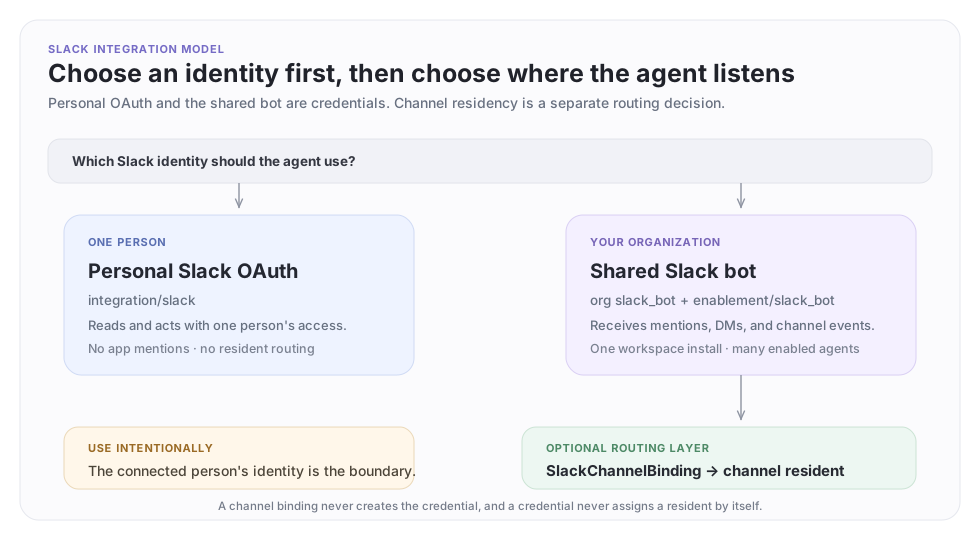
Slack has two credential models and one routing layer:
| What you need | Use | Identity in Slack |
|---|---|---|
| One agent acts through one person's Slack account | integration/slack |
The connected person |
| Agents participate as the organization's Slack app | Org slack_bot integration plus enablement/slack_bot |
The Slack bot, labeled as the replying agent when permitted |
| One enabled agent owns a channel's incoming conversation | SlackChannelBinding |
The channel's resident agent |
Most team deployments should use the shared Slack bot. Use personal OAuth only when acting as a specific person is intentional.
Understand the four relationships
Slack setup becomes much easier when each relationship has a distinct name:
- Slack workspace install — an org admin authorizes the ArchAgents Slack app once. This creates the shared
slack_botintegration and stores the bot credential. - Agent enablement — an
enablement/slack_botinstallation lets one agent use that shared bot connection. - Channel binding — a
SlackChannelBindingmakes one agent the resident for a channel, optionally binding that channel to a network. - Mirror thread — incoming Slack messages are represented in a thread in ArchAgents so the agent can reason and reply.
Installing the workspace app does not by itself assign a resident to every channel. Likewise, a channel binding does not replace the agent's Slack enablement.
Choose a tutorial
| Goal | Start here |
|---|---|
| Let agents answer mentions and DMs as a bot | Tutorial 1: install the shared Slack bot |
| Let an agent read and act as one person | Tutorial 2: connect personal Slack OAuth |
| Make an agent the default resident in an internal channel | Tutorial 3: assign an internal channel resident |
| Put an agent in a customer or Slack Connect channel | Tutorial 4: bind a channel to a network |
| Add your agent while you are a guest in another company's workspace | Guest-hosted channels |
| Understand follow-ups in Slack reply threads | Slack reply threads |
Tutorial 1: install the shared Slack bot
Use this model when agents should participate under your organization's Slack app rather than impersonating a person.
Before you begin
You need:
- ArchAgents organization-admin access
- permission to install apps in the target Slack workspace, or a Slack admin who can approve the request
- an existing agent
- a channel where you can invite and test the bot
For agents that respond to incoming conversations, the agent also needs:
- a unique
lookup_key, used as its addressable handle - an active
thread.session.joinparticipate routine
Step 1: connect the workspace
- Sign in to archagents.com as an organization admin.
- Open Settings → Integrations. You can also complete Onboarding → Set up Slack.
- On the Slack card, select Enable.
- Choose the Slack workspace and approve the requested permissions.
- Return to ArchAgents and confirm that Slack shows Connected.
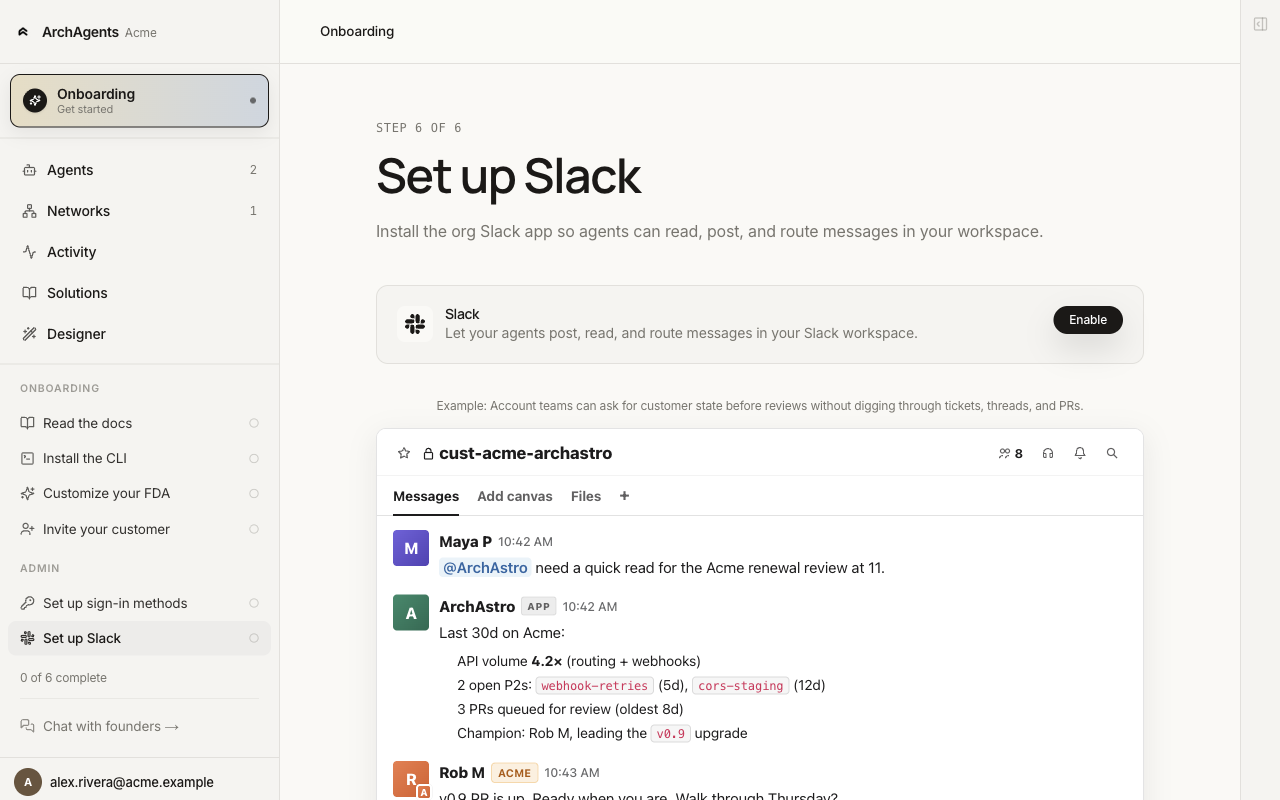
This is a one-time OAuth operation for the organization. It creates a shared integration with provider slack_bot; it does not create a separate bot token for every agent.
App-level setup is not an organization installation
For agent conversations, use the organization setup above. Configuring an app's Slack provider does not choose an organization, install its shared bot, or grant channel membership.
The separate app-owned slack_app connector supports link unfurls (links:read, links:write), not agent channel participation. Applications using that connector should start an organization-admin signed handoff with a validated connector.web_redirect pointing to their setup page. The callback returns to that stored destination; without one it falls back to the console root. Callback query parameters cannot override the return destination. If an app-level button lands at the root, reopen the target organization's integrations page and use the supported organization setup.
Step 2: choose permissions
The default installation requests the complete supported permission set. Customize permissions lets an administrator trim optional scopes before OAuth.
| Capability | Slack scopes |
|---|---|
| Receive mentions and send replies | app_mentions:read, chat:write — required |
Register the /archagent slash commands |
commands — required; without it every slash command disappears, including mute |
| Use each agent's name and avatar on replies | chat:write.customize |
| Read public channels | channels:read, channels:history |
| Read private channels the bot has joined | groups:read, groups:history |
| Create or manage private channels | groups:write |
| Receive direct messages | im:read, im:history |
| Read shared files | files:read |
| Match Slack users to ArchAgents accounts | users:read, users:read.email |
| Inspect the workspace | team:read |
| Invite another workspace to a Slack Connect channel | conversations.connect:write |
If you omit a permission, capabilities that require it remain unavailable. Reopen Settings → Integrations and select Update permissions when requirements change.
Step 3: enable the agent
Attach the agent to the organization's shared Slack bot:
archagent create agentinstallation \
  --agent <agent_id> \
  --kind enablement/slack_bot
When exactly one Slack bot integration matches the agent's organization, the installation auto-binds and becomes active. If more than one matches, select the intended ArchAgents integration:
archagent list integrations \
  --provider slack_bot \
  --auth-type app_installation \
  --org <org_id>

archagent create agentinstallation \
  --agent <agent_id> \
  --kind enablement/slack_bot \
  --shared-integration <integration_id>
<integration_id> is the ArchAgents integration resource ID. It is not the Slack workspace ID that starts with T.
For config-managed agents, include the enablement in the AgentTemplate:
lookup_key: releases

routines:
  - name: Participate in conversations
    event_type: thread.session.join
    handler_type: preset
    preset_name: participate
    status: active

installations:
  - install_type: enablement/slack_bot
    config: {}
Deploying this template creates the same agent-level enablement. The participate routine is what lets the agent wake when it joins a mirrored conversation.
Step 4: invite the app to a channel
In Slack, open the target channel and invite the ArchAgents app. For example:
/invite @ArchAgent
A fresh workspace installation can have zero reachable channels. Installing the app is not an invitation to any channel.
Ask someone already in the target channel with permission to add apps to invite the installed app (its name may differ from the example). Your own membership and the bot's membership are separate: joining a private channel yourself does not give the bot access, and inviting the bot does not authorize every operator to read it.
Use this human invite step for public channels too. This setup does not automatically join public channels or require channels:join; do not add broad permissions to work around a missing invite. Private channels require an invitation by an authorized member. Agent enablement and channel residency remain separate setup steps.
| Slack error | Next action |
|---|---|
not_in_channel |
Invite the installed app to the target channel, then retry. |
channel_not_found |
Check the channel ID and connected workspace. The channel may also be invisible to the bot; ask a member to invite it. |
missing_scope |
Ask an org admin to update permissions for the intended operation and authorize again. Scopes do not replace channel membership. |
invalid_auth, token_revoked |
Ask an org admin to reconnect Slack from the organization's integrations settings. |
Unknown provider or transport failures remain sanitized; contact an administrator with the failed operation and time, not a bot token.
Step 5: verify the installation
archagent list agentinstallations --agent <agent_id>
archagent describe agentinstallation <installation_id> -o json
Expected result:
- kind is
enablement/slack_bot - state is
active shared_integrationidentifies the org Slack bot connection- no
next_actionor setup error remains
If the installation stays pending with next_action: configure_shared_integration, the shared workspace connection is missing, invisible to the current viewer, or ambiguous.
Step 6: test the unbound routing path
A channel with no resident is an observer channel: messages are recorded and nobody replies, including to mentions of the app. Assign a resident before you test. Mentioning a second handle in the message does not pick an agent; the resident always answers.
Also test a direct message to the app. If a DM or mention arrives but no reply is posted, use the troubleshooting checklist.
To make the agent the channel's default resident, continue to Tutorial 3 for an internal channel or Tutorial 4 for a customer-facing channel.
Tutorial 2: connect personal Slack OAuth
Use integration/slack when an agent should use one person's Slack access and act as that person. This connection is not the workspace bot and does not make the agent the receiver for @ArchAgent mentions.
Typical uses include:
- searching channels the connected person can access
- importing that person's Slack activity as context
- taking an explicitly authorized action through that person's account
Step 1: create the personal installation
archagent create agentinstallation \
  --agent <agent_id> \
  --kind integration/slack
Save the returned installation ID.
Step 2: complete OAuth
archagent authorize agentinstallation <installation_id>
Open the authorization URL and sign in as the person whose Slack identity the agent should use. Review the workspace and permissions before approving.
Step 3: activate and verify
archagent activate agentinstallation <installation_id>
archagent describe agentinstallation <installation_id>
The installation should report active. If the token expires or Slack revokes access, authorize it again rather than replacing the agent.
Personal OAuth versus the shared bot
| Behavior | Personal integration/slack |
Shared enablement/slack_bot |
|---|---|---|
| Credential belongs to | One Slack user | The organization Slack app |
| Slack identity | The connected person | Bot, optionally customized with agent name/avatar |
| Reusable by several agents | No | Yes, with one enablement per agent |
| Receives app mentions and bot DMs | No | Yes |
| Supports resident channel routing | No | Yes |
| Good default for team agents | No | Yes |
The two models can coexist on the same agent, but use that deliberately: tools and routines should make it clear whether an action uses the person's account or the bot.
Tutorial 3: assign an internal channel resident
A resident is the default agent for an internal Slack channel. Once assigned, ordinary incoming messages route to that agent; users do not need to include its handle every time.
Step 1: list available agents
From Slack, run:
/archagent
Select Browse agents, or use the agent's known lookup_key handle.
Step 2: assign the resident
Run this command in the channel the agent should own:
/archagent assign @releases
The command creates the internal channel binding when needed and makes the selected agent its sole resident. The change is announced in the channel so residency changes are not silent.
For private channels, the person assigning the resident must be a channel member. The Slack app and resident agent still need the permissions and enablement described in Tutorial 1.
Step 3: inspect or disconnect the resident
/archagent status
/archagent disconnect
disconnect clears the resident and keeps the binding. The channel returns to the observer state: messages are still recorded, and nobody replies there — including to explicit app mentions. The disconnect is durable, so ordinary inbound traffic does not re-attach the agent.
Deleting the channel binding itself has no slash-command surface. Use the REST API or delete slackchannelbinding <channel> when you intend to remove the binding.
How internal routing works
- A channel with a resident routes to that resident.
- A channel without a resident is an observer: messages are recorded and nobody replies.
- Assigning a resident is channel-level; it is not scoped to one Slack reply thread.
- A private channel remains governed by Slack membership and the synchronized mirror-thread membership.
Tutorial 4: bind a channel to a network
Use a network-bound channel for a customer relationship or Slack Connect channel. The binding does three jobs:
- associates the Slack channel with the ArchAgents network
- limits the channel to the selected resident agent
- enrolls the selected agent in the underlying API
team, which supplies the privacy boundary for mirrored messages
Externally shared channels fail closed when they are not bound to a network. This prevents an arbitrary agent from answering across a company boundary.
End-to-end Slack-native setup
When the /archagent command is available, you do not need to copy the Slack
workspace or channel ID. Slack includes both IDs in the command payload.
From the target channel:
- Invite the app:
/invite @ArchAgent. - Run
/archagentand confirm that the welcome screen opens. - For an internal channel, run
/archagent connectand pick an agent in the modal. - For a customer or externally shared channel, run
/archagent connectand pick the customer; the channel is adopted through Customer Management. Use/archagent assign @<agent-handle>afterward if you need to change the resident. - Run
/archagent statusand confirm the expected network and resident. - Post
@ArchAgent Can you introduce yourself?and confirm the resident replies.
Management commands:
/archagent                      What this channel is set up as
/archagent status               The same card
/archagent connect              Connect an agent, or connect a shared
                                channel through Customer Management
/archagent disconnect           Stop the resident, keep the channel connected
/archagent list                 List configured channels
/archagent assign @releases     Directly assign an agent in an internal channel
/archagent mute [30m|2h|1d]     Pause replies
/archagent unmute               Restore replies
/archagent reply-style thread|top_level
Find the Slack workspace and channel IDs
You need IDs only when using the portal form, CLI, API, or a custom workflow.
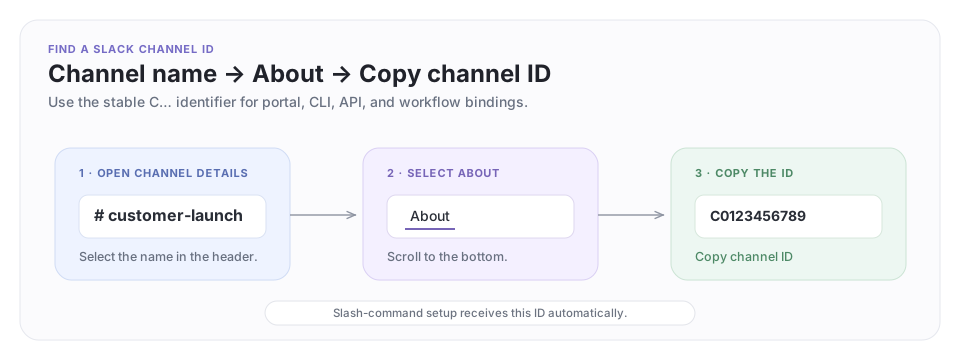
To copy the channel ID in Slack desktop or web:
- Open the target channel.
- Select the channel name in the conversation header.
- Open About.
- Scroll to the bottom and select Copy channel ID.
Channel IDs normally begin with C. The ID is stable even if someone renames
the channel. Slack's API also returns channel names and IDs from
conversations.list
when you need to look them up programmatically.
The CLI's --slack-team value is Slack's workspace ID, historically named
team_id; it normally begins with T. Read it from the connected org
integration rather than guessing from the company name:
archagent list integrations \
  --provider slack_bot \
  --auth-type app_installation \
  -o json
Find the record for the target Slack workspace and copy its installation_id.
That is the <T...> value used by --slack-team. The integration's ArchAgents
resource id is a different identifier and must not be substituted.
Option A: connect from the portal
- Confirm the Slack app is connected under Settings → Integrations.
- Open Networks, then select the customer network.
- Open the Connection tab.
- Under Slack channels, select Connect Slack channel.
- Paste the Slack channel ID, optionally add a customer label, and select the resident agent.
- Select Connect.
The agent must already appear in the network. Add it under Members first if the agent list is empty.
Option B: connect from the CLI
archagent create slackchannelbinding \
  --slack-team <T...> \
  --channel <C...> \
  --team <team_id> \
  --agent <agent_id> \
  --customer-label "Acme"
In user-facing prose, <team_id> is the network ID. The CLI and API retain the underlying team name.
The command is an idempotent upsert. Repeat --agent only when a workflow intentionally permits several attached agents; the normal resident model uses one.
Inspect the result:
archagent list slackchannelbindings --team <team_id>

archagent describe slackchannelbinding <C...> \
  --slack-team <T...>
Remove the binding:
archagent delete slackchannelbinding <C...> \
  --slack-team <T...>
Deleting a binding stops resident routing for that channel. It does not uninstall the organization Slack app or delete the agent's Slack enablement.
Guest-hosted channels
Being a guest in another company's Slack workspace gives your human account access to a channel. It does not give your organization's Slack app or agents access to that workspace.
There are two supported topologies:
| Channel topology | Slack app to use |
|---|---|
| The channel is hosted only in the other company's workspace | Install or approve your organization's Slack app in that host workspace |
| The channel is shared to your workspace with Slack Connect | Use the Slack app installation on your side of the shared channel |
For a channel hosted only in the other company's workspace:
- Connect that workspace from your ArchAgents organization's Settings → Integrations flow.
- Have a Slack administrator for the host workspace approve or complete the app installation if your guest account cannot install apps.
- Ask a channel member to invite the Slack app to the channel.
- Add
enablement/slack_botto the agent. - Bind the channel to a dedicated customer network and the agent, using the host workspace's
T…ID and the channel'sC…ID.
archagent create slackchannelbinding \
  --slack-team <host-workspace-T...> \
  --channel <channel-C...> \
  --team <customer-network-team_id> \
  --agent <agent_id> \
  --customer-label "Customer name"
Use a network-bound customer binding for this topology. Do not use a bare internal-channel assignment merely because Slack considers the channel internal to the host workspace: people from another company can read the surface, so it needs the customer privacy boundary and guarded reply path.
For Slack Connect, bind the installation that receives events on your side of the shared channel. The same Slack channel can have a separate installation and binding for each participating organization; one organization's binding does not grant credentials or agent access to the other.
If the host will not approve the Slack app and the channel is not shared into your workspace with Slack Connect, you cannot add a resident agent to it. Personal
integration/slackOAuth can let an agent act through your user account, but it does not install the bot, receive app mentions, or create channel residency.
Option C: set up a customer from Slack
In the Slack Connect channel, run:
/archagent connect
The modal walks you through picking the customer and adopts the channel through the Customer Management provisioning pipeline, which creates the customer's network and dedicated agent and binds the current channel. Use these commands afterward:
/archagent status
/archagent assign @customer-agent
/archagent disconnect
Use assign to change the resident. Use disconnect to leave the network binding in place without a resident. Removing the channel-to-network binding itself has no slash-command surface — use the REST API or delete slackchannelbinding <channel>.
Agent names and Slack identity
One shared Slack app can represent many agents. The names serve different purposes:
| Name | Example | Where it appears | How to change it |
|---|---|---|---|
| Slack app name | ArchAgent |
App directory, DMs, and the outer @ArchAgent mention |
Slack app configuration; changes the shared app for every agent |
| Agent display name | BigQuery Buddy |
Sender name on new replies and thinking indicators | Agent name |
| Agent routing handle | bigquery-buddy |
/archagent assign @bigquery-buddy and explicit agent addressing |
Agent lookup_key |
| Thread title | #data-platform |
ArchAgents conversation list | Thread metadata; independent of the agent name |
For a config-managed agent, set both the human-readable name and stable routing
handle in its AgentTemplate:
kind: AgentTemplate
name: BigQuery Buddy
lookup_key: bigquery-buddy
Deploy the config through your normal config workflow. For a directly managed agent, update it from the CLI:
archagent update agent <agent_id> \
  --name "BigQuery Buddy" \
  --lookup-key bigquery-buddy
Optionally update its Slack-facing avatar at the same time:
archagent update agent <agent_id> \
  --profile-picture ./bigquery-buddy.png
Slack displays the agent's name and avatar through per-message username and
icon_url overrides. The organization Slack installation must include
chat:write.customize; otherwise Slack falls back to the shared app identity.
Grant it from Settings → Integrations → Slack → Update permissions.
The change applies to new replies and new thinking indicators. Existing Slack messages keep the identity with which they were posted, and renaming the agent does not rename existing ArchAgents threads.
After changing the handle, use the new value for assignment:
/archagent assign @bigquery-buddy
/archagent status
Slack reply threads
A Slack channel binding applies to the channel, not to one reply thread inside that channel.
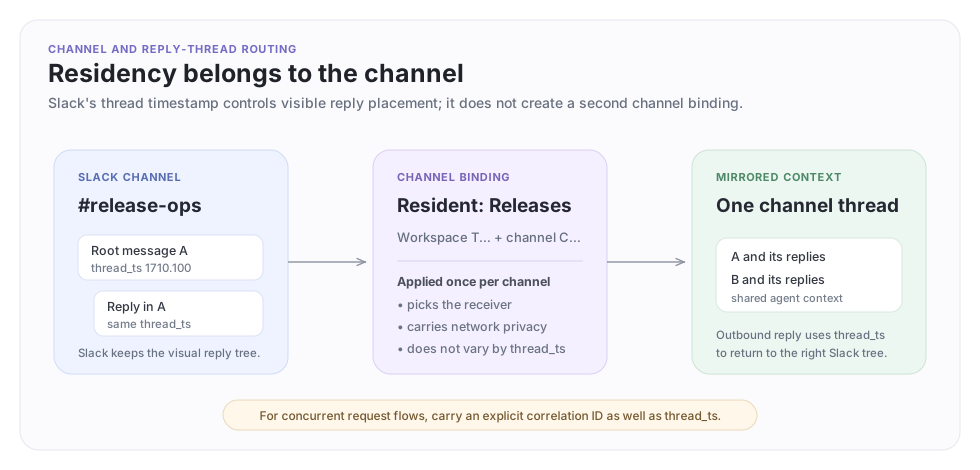
When a person replies in a Slack thread:
- Slack's
thread_tsis preserved so the bot response is posted back into the same visible Slack thread. - The channel's resident still determines which agent receives the message.
- The mirrored ArchAgents conversation is currently channel-level. Separate Slack reply threads in the same channel are not separate agent-context containers.
This distinction matters for concurrent workflows. If two independent requests are active in different Slack reply threads, include a request identifier or other correlation data until per-reply-thread context isolation is enabled.
There is no separate “install agent into this Slack reply thread” operation. Install the bot, enable the agent, then bind the channel or address the agent by handle.
Routing reference
| Channel state | Receiver | Handle behavior |
|---|---|---|
| Bound to a network | Network's resident agent | Resident wins; explicit handle does not reroute |
| Bound to an internal resident | Internal resident agent | Resident wins; explicit handle does not reroute |
| No resident binding | Nobody; the channel is an observer | Mentions are recorded, not answered |
Incoming Slack messages are mirrored into ArchAgents. The agent's participate routine produces a reply, and the Slack response forwarder posts it using the shared bot credential. Bot-originated echoes are suppressed to prevent reply loops.
Proactive messages from scripts
An agent with an active enablement/slack_bot can post from a script without managing a webhook URL or token:
let slack = import("slack")

unwrap(slack.send({
  channel: "#release-alerts",
  text: "Release 2.4 is ready for verification."
}))
Reply inside an existing Slack thread by supplying thread_ts:
unwrap(slack.send({
  channel: "C0123456789",
  thread_ts: input.thread_ts,
  text: "The rollback completed successfully."
}))
The bot must be a member of the destination channel and have the necessary Slack scopes.
Troubleshooting
The agent installation is pending
Run:
archagent describe agentinstallation <installation_id>
archagent list integrations --provider slack_bot --auth-type app_installation --org <org_id>
- No shared integration: an org admin must complete the Slack install.
- Several shared integrations: recreate or update the enablement with
--shared-integration <integration_id>. - Integration is invisible: confirm the agent and integration belong to the same app and organization.
Mentions arrive but the agent does not answer
Check, in order:
- The Slack app is invited to the channel.
- The agent has an active
enablement/slack_botinstallation. - The agent has a unique
lookup_keyand active participate routine. - The deployed Slack reply workflow is present for the app.
- The channel binding points to the expected resident.
- The Slack install includes the scopes required for that channel type.
The agent answers, but Slack receives nothing
- Confirm
chat:writeis granted. - Confirm the app is still a member of the channel.
- For customized agent identity, confirm
chat:write.customizeis granted. - Inspect the agent's Slack enablement; replies do not fall back to an unrelated org credential.
A Slack Connect channel is rejected
Externally shared channels require a network-bound SlackChannelBinding before a resident can be assigned. Use /archagent connect where available, the network Connection UI, or create slackchannelbinding.
A private channel cannot be changed
Private-channel residency is member-managed. Ask a Slack member of that channel with the necessary ArchAgents permissions to perform the assignment.
Users cannot see the mirrored conversation
Slack and ArchAgents identities must be linked for personal visibility. The bot needs users:read and users:read.email for email matching, or the user can link their account from the Slack App Home tab where available. Slack membership remains the source of truth for private-channel visibility.
Remove or rotate Slack access
- Delete a channel binding to stop routing one channel.
- Delete an agent's
enablement/slack_botto remove that agent's bot access. - Disconnect the org Slack integration only when you intend to affect every agent that uses it.
- Reconnect or update permissions when rotating the workspace install; then verify each enablement returns to
active. - Delete personal
integration/slackinstallations individually when a person's access should no longer be used.
Next steps
- Read Integrations for the shared-app and personal-OAuth models across providers.
- Read Installations for state and lifecycle details.
- Read Networks for the user-facing network model behind the CLI's
team_id. - Read Scripts and the Script language reference to automate Slack actions.
Have feedback?
Help us make this page even more useful.
Tell us what you'd like to see expanded, which examples would help, or what workflow you want covered next. Every message gets read.