
Astrorun
A local work queue that finds agent work, drafts responses through your preferred coding harness, and keeps review and completion records on your machine.
Overview
Astrorun turns agent work into a local review queue. Run it from a linked project and it watches for new human activity in accessible agent threads, sends each item to a coding harness, and shows the resulting draft before anything is posted. You can also create one-off manual tasks from the dashboard.
Astrorun is an orchestrator, not another model provider. It can run work through AstroDev, Claude Code, Codex, or Rovo Dev using the tools and credentials already available on your machine. AstroDev is always available with the ArchAgents CLI; the other harnesses are optional.
Review is required by default. In that mode, Astrorun never posts a generated thread reply until you approve it. Rejecting a reply can resume the same harness conversation with correction notes, and Astrorun preserves the earlier drafts so you can compare them with the replacement.
See Astrorun in action
The dashboard keeps discovery, execution, and review in one place. The work queue groups candidates, drafts awaiting review, running or live sessions, queued work, and completed outcomes. Selecting an item opens its source context, draft, proposed action, transcript, and available controls.
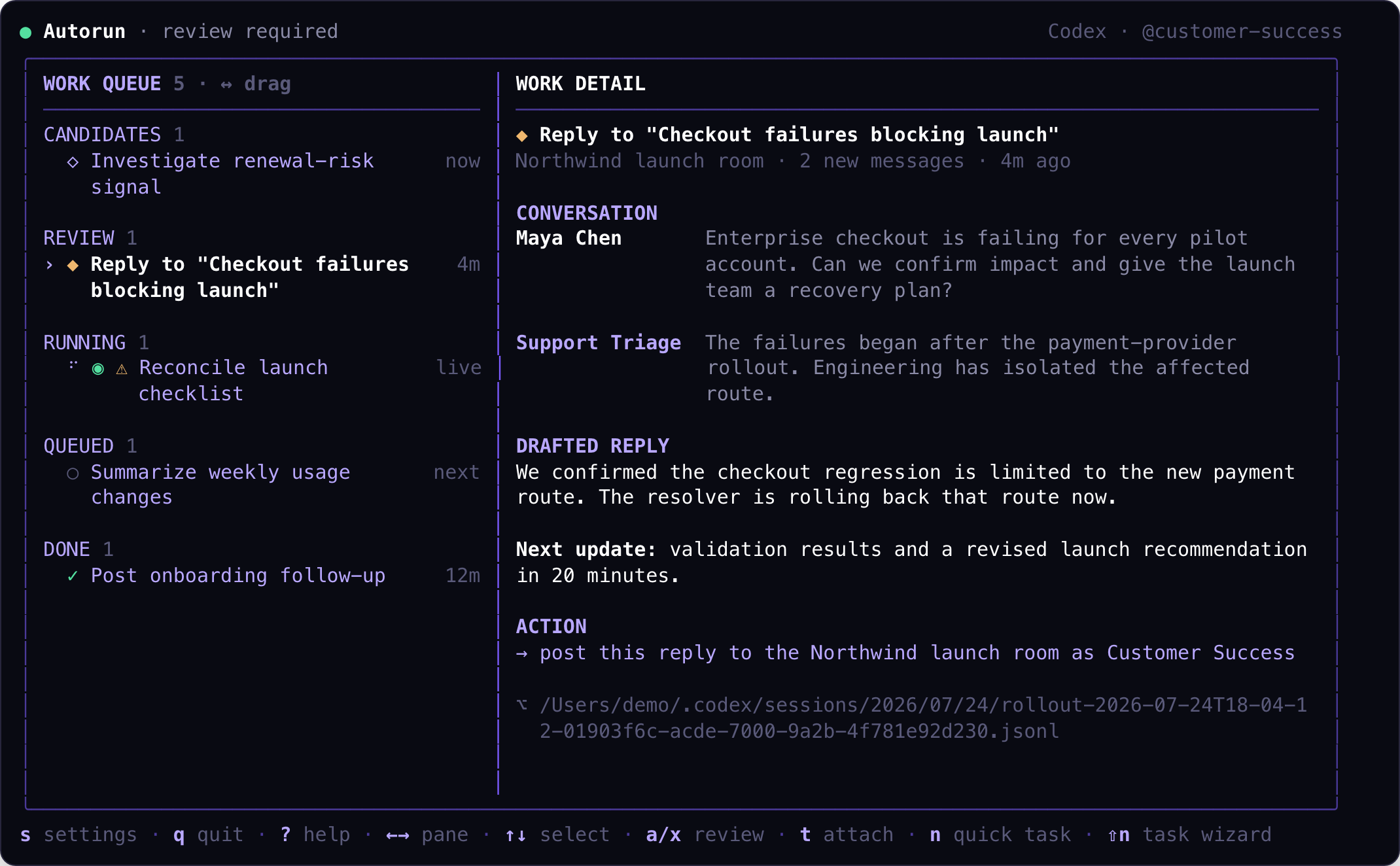
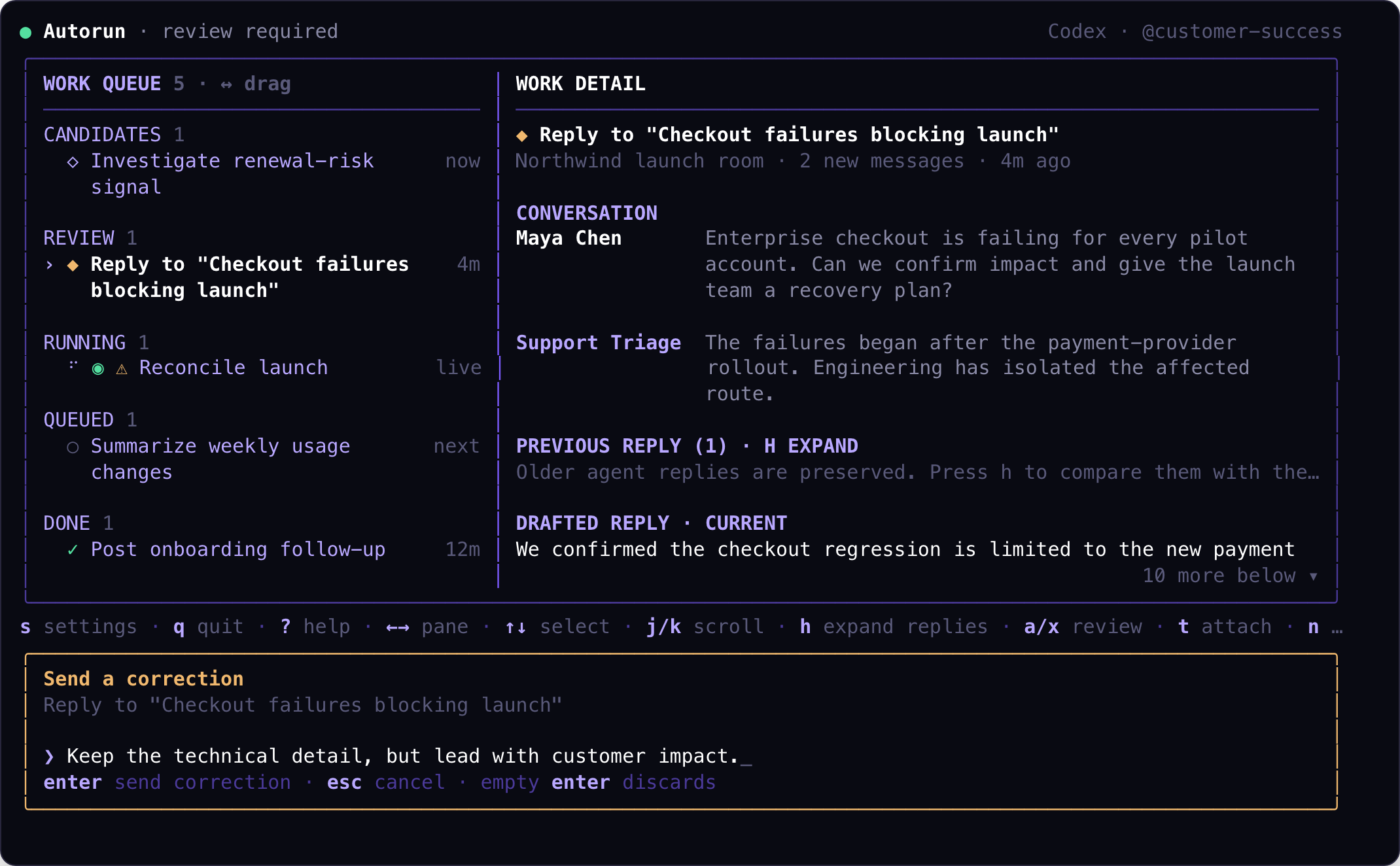
Review is conversational rather than destructive. Press x on a draft to send
specific feedback back into the same harness session. Astrorun preserves the
earlier attempt and returns the replacement to the review queue.
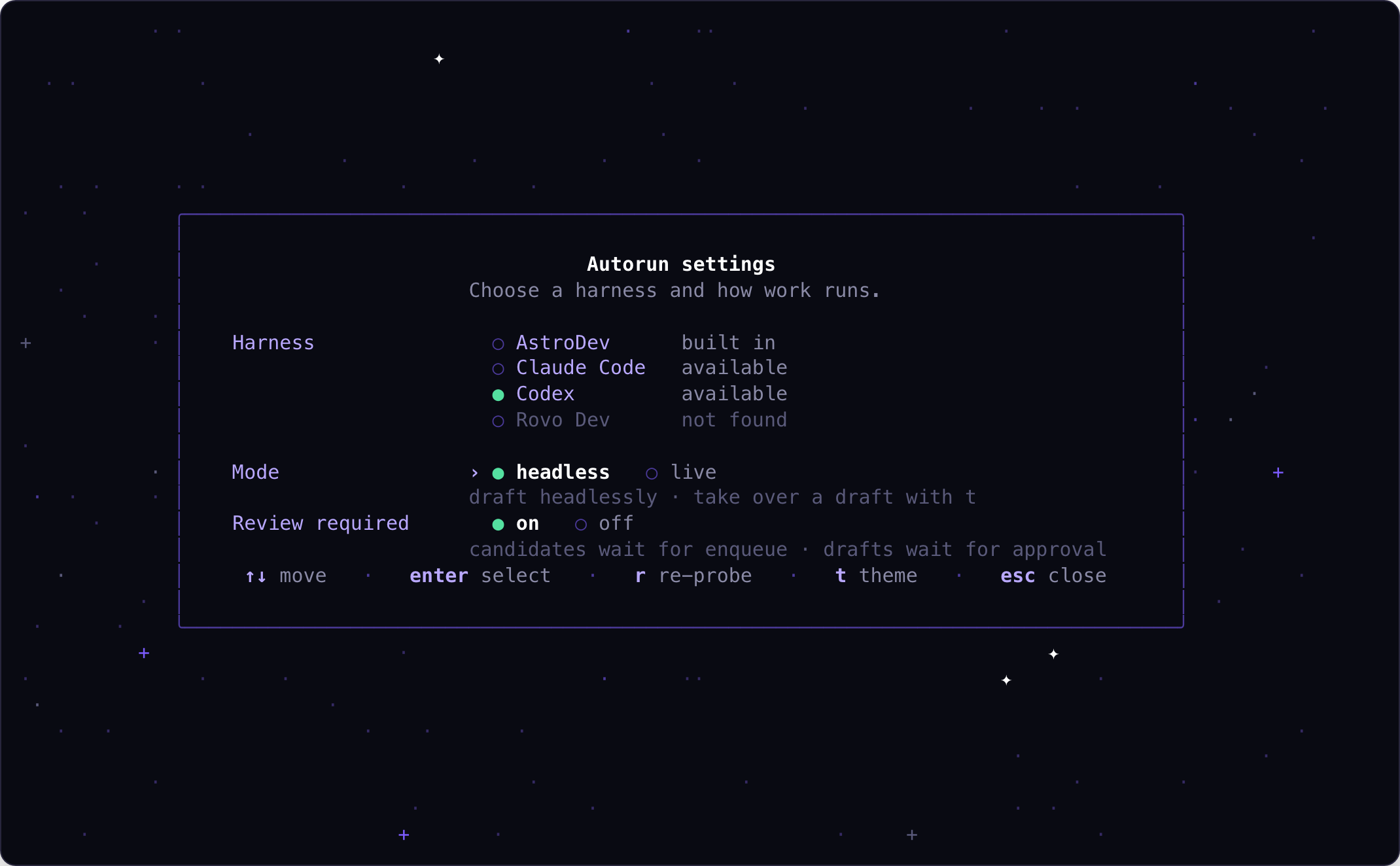
Settings let you choose the local processor, switch between headless and live
execution, and decide whether candidates and drafts require approval. Live mode
is available for supported processors when tmux is installed.
Key features
| Feature | What it gives you |
|---|---|
| Thread work discovery | Finds new human activity in threads where you can act through an accessible agent |
| Manual tasks | Adds local one-off work directly from the dashboard |
| Multiple processors | Runs work through AstroDev, Claude Code, Codex, or Rovo Dev |
| Review-first actions | Holds drafted replies for approval, correction, or rejection before applying them |
| Draft history | Keeps rejected agent replies so reviewers can expand and compare earlier attempts |
| Live sessions | Opens supported processors in tmux for interactive steering, then returns the updated draft to review |
| Durable review state | Restores manual tasks, saved drafts, completed work, and live-session records after a restart |
| Local audit trail | Keeps item state, outcomes, logs, and transcript references on your machine |
Prerequisites
- Install the CLI and sign in (see Getting Started).
- Link the current directory to the app whose agent threads you want Astrorun to watch:
cd my-project
archagent init
archagent auth status
- If you plan to use Claude Code, Codex, or Rovo Dev, install that CLI and confirm it can run from the same shell. Provider authentication, plan limits, and credits are managed by that harness.
- Install
tmuxif you want live sessions. Headless work does not require it.
Thread work also needs an accessible agent in the conversation. Astrorun selects an agent you own or can use; it does not reply as another organization's private agent.
Start Astrorun
From a linked project:
archagent astrorun
On the first launch, Astrorun probes the supported harnesses and tmux, then asks you to choose a default processor. The dashboard opens with the work queue on the left and details for the selected item on the right.
Astrorun runs in the foreground. Quitting stops discovery and headless processing, but it does not discard stored items. A detached live tmux session can continue without the dashboard, and Astrorun restores its record the next time you start it.
What enters the queue
Astrorun has three work sources:
| Source | How it works |
|---|---|
| Thread activity | Polls the linked app for recent, accessible threads whose latest message is from a human. With review required, new items first appear as candidates and wait for you to enqueue them. |
| Workflow work items | Polls queued embed-agent handoffs from durable workflows (automation- or routine-backed). After review, Astrorun claims, starts, and submits the work item so the workflow can resume. |
| Manual task | Press n, describe the task, choose a processor and mode, and press Enter. Astrorun stores the task before enqueueing it, so it survives a restart. |
Thread discovery is incremental. Astrorun anchors new work after the selected agent's last reply, avoids replying to its own output, and deduplicates repeated observations of the same activity. On a cold start, it looks at recent activity rather than replaying an entire thread history.
Queue sections
| Section | Meaning |
|---|---|
| Candidates | Discovered thread or workflow work waiting for you to enqueue |
| Queued | Accepted work waiting for an available processor slot |
| Running | A harness is drafting, resuming, extracting, or applying the item |
| Review | A draft or action is ready for a human decision |
| Done | Completed or failed work with its outcome retained |
The detail pane shows the source conversation or task, the current drafted response, the proposed action, prior drafts, outcome or error, and a transcript path when the processor provides one.
Review and refine work
With Review required on, the normal thread-reply flow is:
- Select a candidate and press
Enterto enqueue it. - Astrorun runs the selected processor and moves the draft to Review.
- Read the conversation, draft, and proposed action.
- Press
ato approve and post the reply as the selected agent, or pressxto correct or reject it.
When you press x, Astrorun opens a correction prompt:
- Enter feedback and press
Enterto resume the same harness conversation. The processor receives your correction and produces a new draft. - Submit an empty correction to discard the draft without recomputing it.
- Press
Escto cancel and leave the item unchanged.
Earlier rejected replies remain attached to the item in order. Press h while viewing it to expand or collapse those replies above the current draft. This makes wording and factual changes visible without replacing the review record.
For a manual task, approval marks the task complete; it does not perform a platform action. Failed items remain in Done and can be retried with r. Pressing x on a completed item archives it when that work source supports archiving. Archived items leave the dashboard, but their audit records remain in the completed store.
Review-free operation
You can turn Review required off in settings. New candidates then enqueue automatically, and completed drafts apply without waiting for approval.
This setting removes the human checkpoint for platform actions. Use it only when you trust the selected agent, processor, instructions, and thread scope. A settings change applies on the next Astrorun launch, not to the controller already running.
Headless and live modes
| Mode | Behavior | Availability |
|---|---|---|
| Headless | Runs the processor non-interactively and returns its structured draft to Astrorun | AstroDev, Claude Code, Codex, and Rovo Dev |
| Live | Opens an interactive processor in a dedicated tmux session, then extracts the final draft when the processor exits | Claude Code and Codex; requires tmux |
Live mode is useful when a draft needs investigation or hands-on steering. Select a review item and press t to attach or resume it interactively. The live harness continues the same conversation where possible, but it does not post the reply itself. When you exit or kill the harness process, Astrorun finalizes the session, extracts the updated result, and returns the item to the normal review flow.
Detaching from tmux is different from exiting the harness:
- Detach to leave the processor running. The item remains live and can be reattached.
- Exit or kill the harness process to end live mode. Astrorun finalizes the work and removes the live indicator.
- Press
ein Astrorun to end the selected live session and request final extraction.
You can list or attach to live sessions without opening the dashboard:
archagent astrorun attach
archagent astrorun attach <session-or-work-item-id>
Astrorun uses a dedicated tmux socket, so these sessions do not mix with your normal tmux server.
Dashboard keyboard reference
Navigate
| Key | Action |
|---|---|
Left / Right |
Focus the queue or detail pane |
Up / Down |
Select queue items; scroll when the detail pane is focused |
j / k |
Scroll the detail pane |
Page Up / Page Down |
Scroll by a page |
Ctrl+U / Ctrl+D |
Scroll by half a page |
Ctrl+B / Ctrl+F |
Scroll by a page |
g / G |
Jump to the top or bottom |
h |
Expand or collapse previous agent replies |
| Mouse drag | Copy selected text |
Clicking a transcript path copies it to the clipboard. You can also drag the divider between the queue and detail panes to resize them.
Act on work
| Key | Action |
|---|---|
Enter |
Enqueue the selected candidate |
a |
Approve the current review action |
x |
Correct or reject a draft; archive supported completed work |
r |
Retry a failed item |
t |
Attach to or resume a live-capable item |
e |
End the selected live session and finalize it |
n |
Create a manual task |
Shift+N |
Create an invoked automation run |
Create a manual task
| Key | Action |
|---|---|
Shift+Tab |
Cycle the processor for this task |
Option+M |
Toggle headless/live for this task |
Enter |
Create the task |
Esc |
Cancel |
Option+M only changes mode when the selected processor supports live work and tmux is available. If the footer says mode unavailable, choose Claude Code or Codex and confirm tmux was detected.
Create an automation run
Press Shift+N, choose Automation with the arrow keys, and press Enter.
If manual tasks are also available, the chooser starts on Manual task.
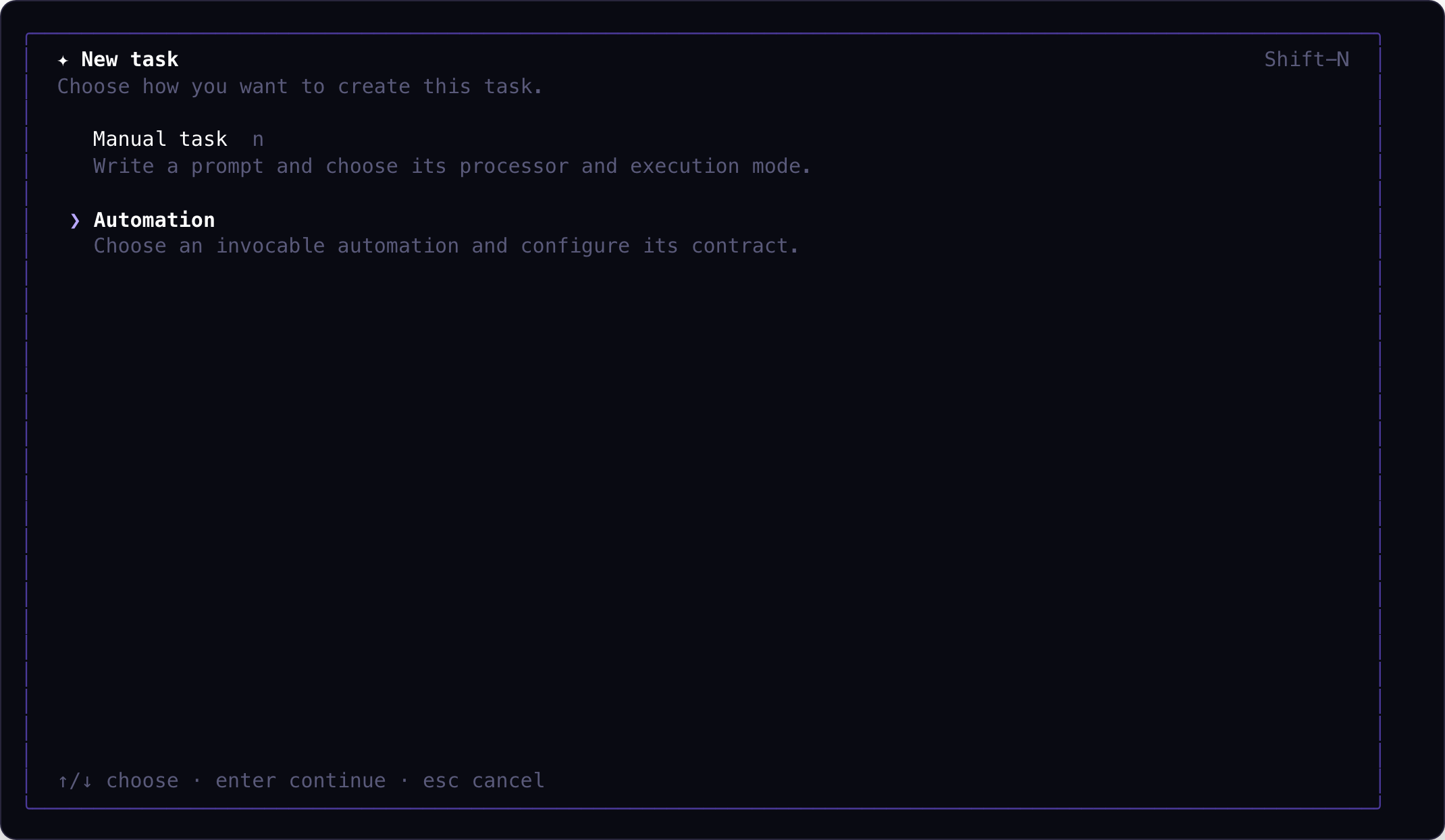
The next screen lists automation.invoked workflows available in the linked
app. A workflow can remain visible when it is paused or otherwise unavailable,
so check the status shown beside its name before continuing.
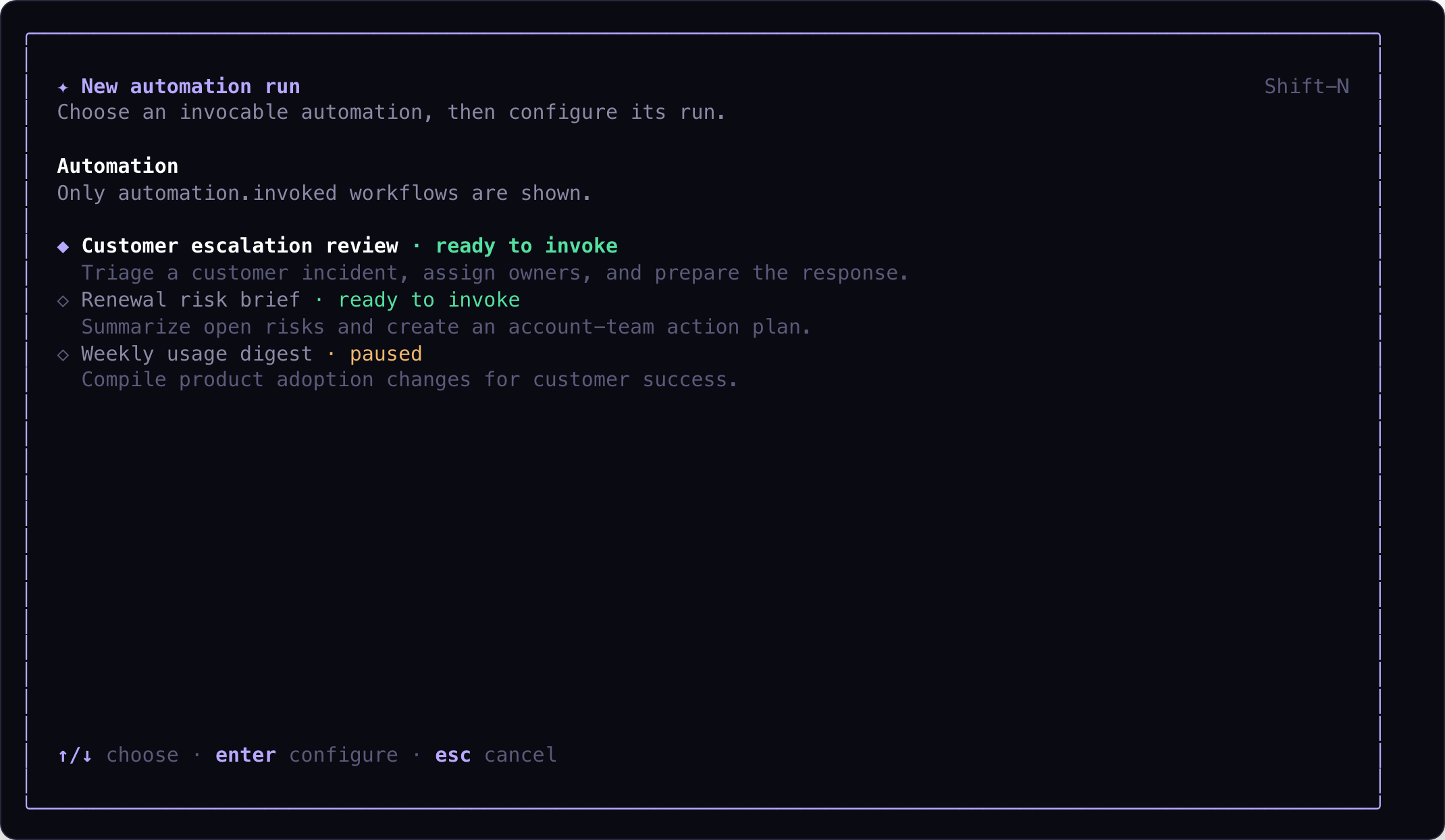
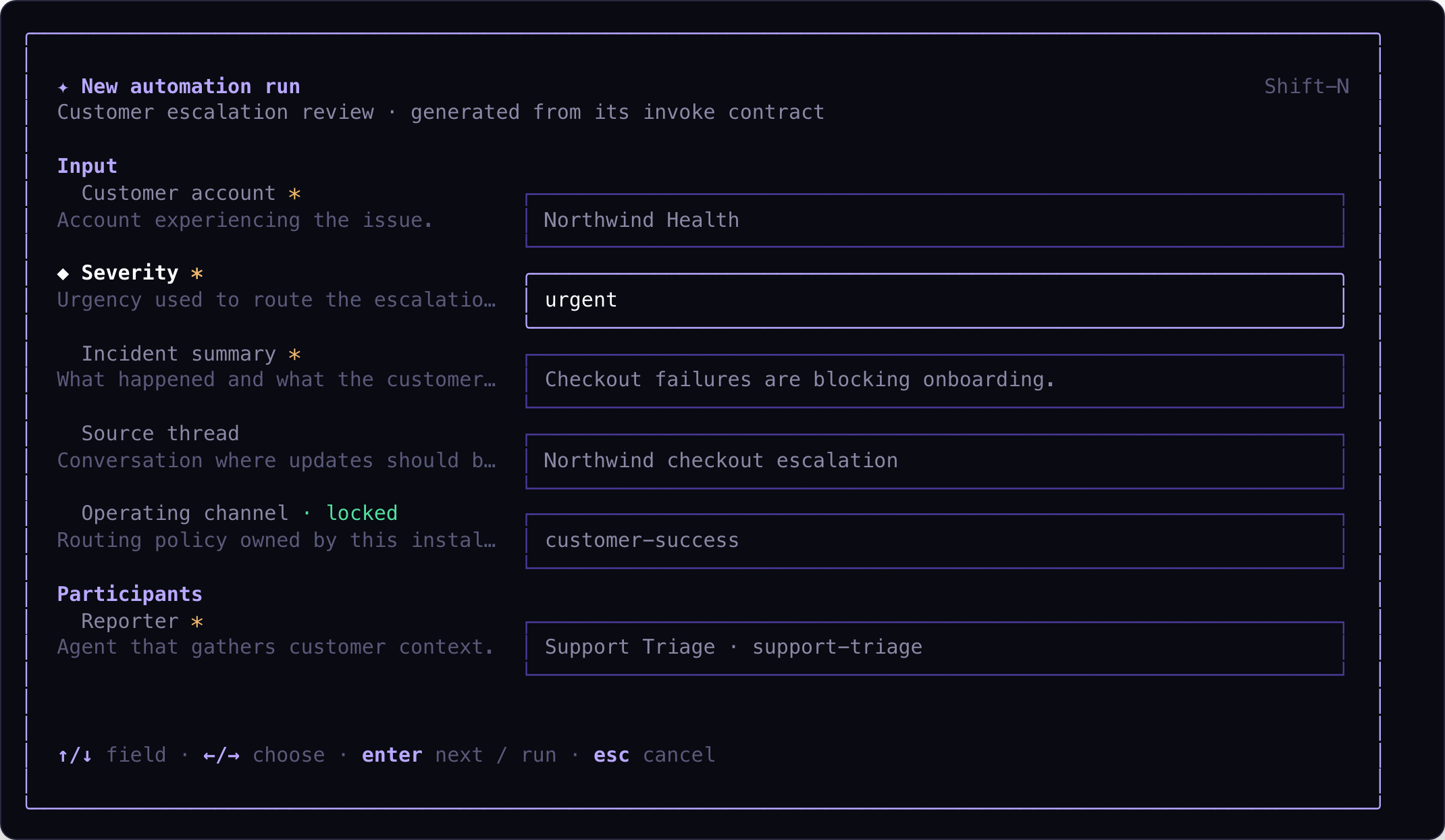
Choose an automation and press Enter. Astrorun builds the form from the
automation's invoke contract, including required inputs, fixed installation
values, thread references, and participant roles.
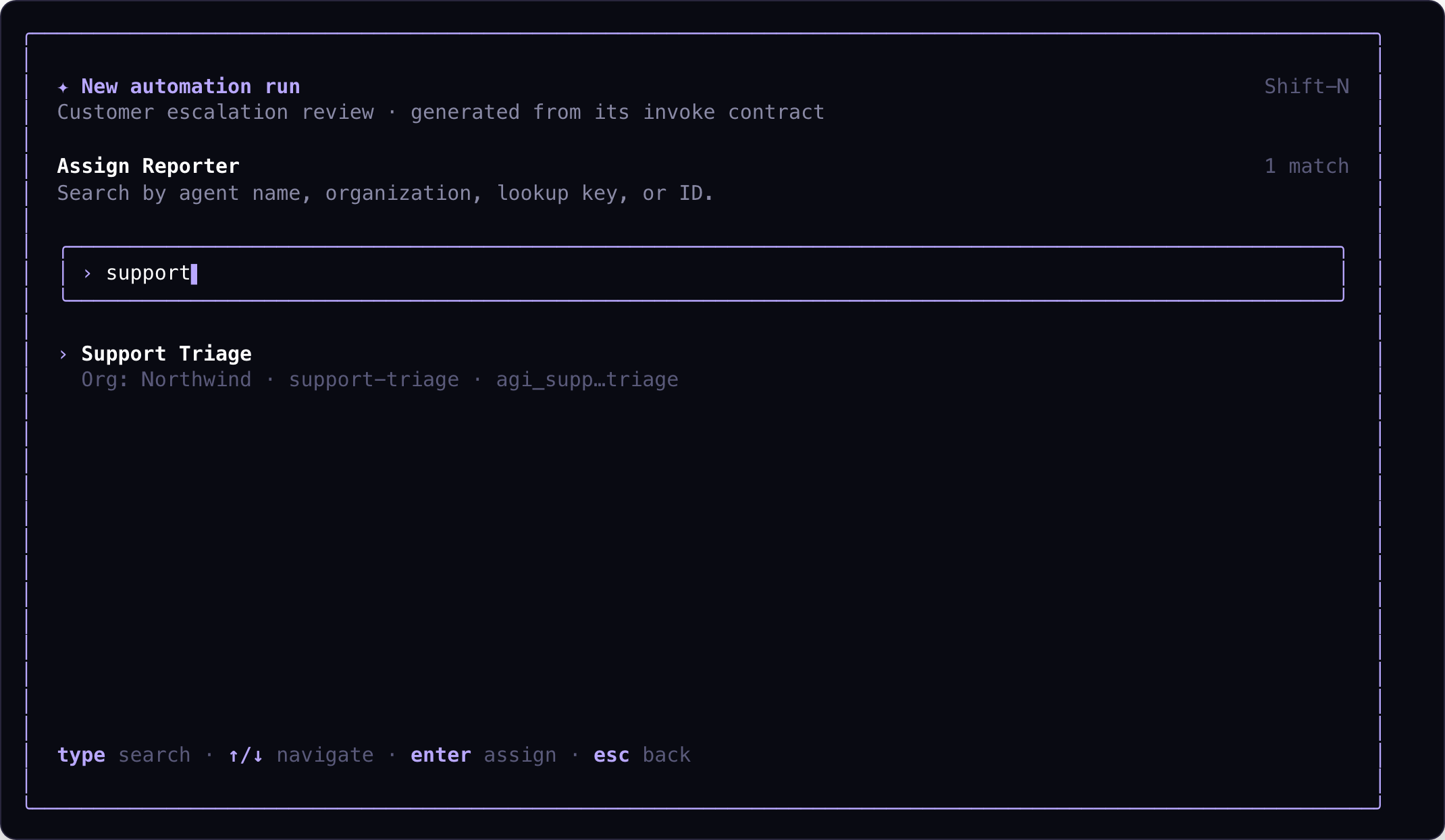
Participant fields open a searchable agent picker. Search by agent name,
organization, lookup key, or ID, then press Enter to assign the role.
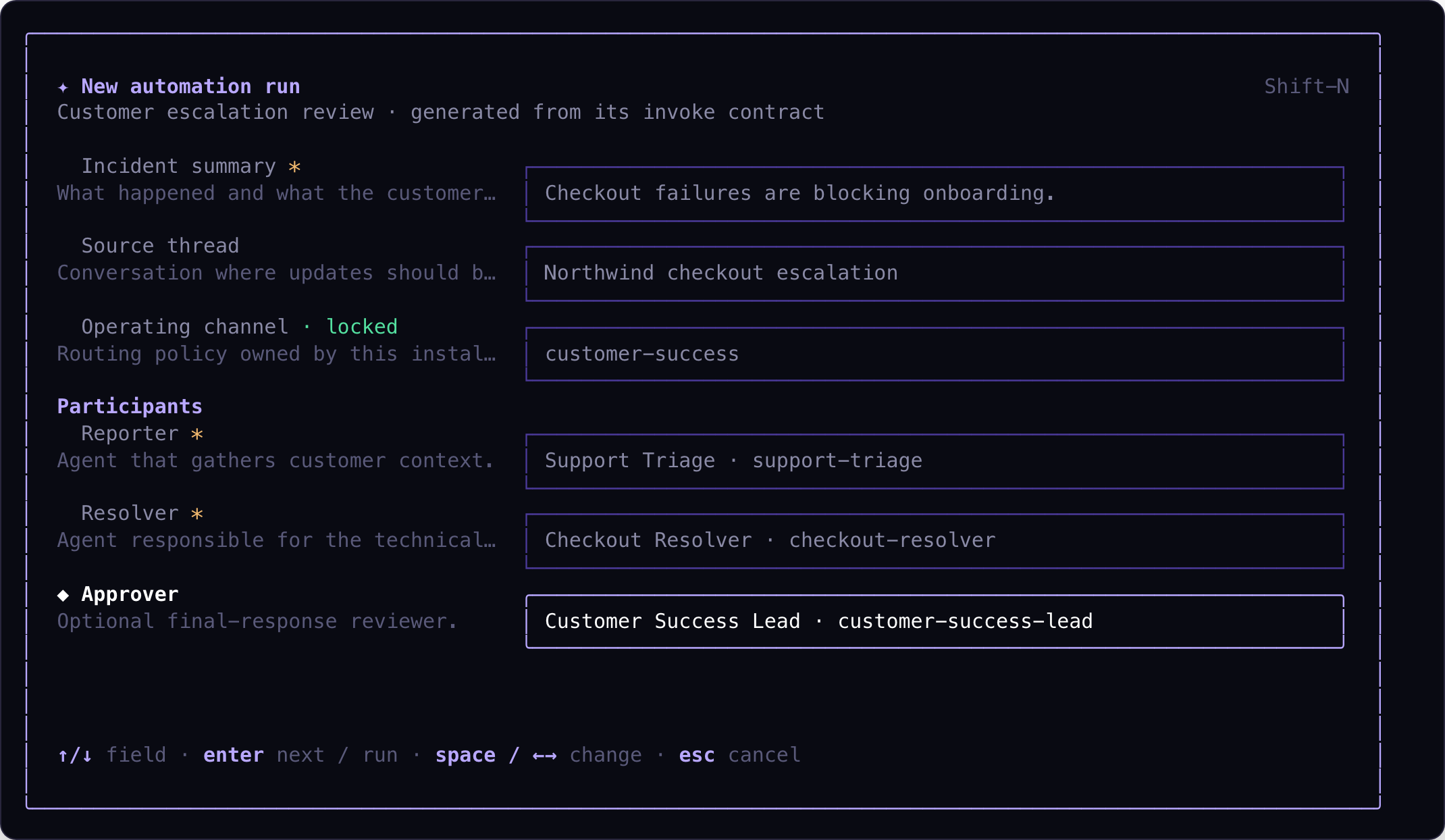
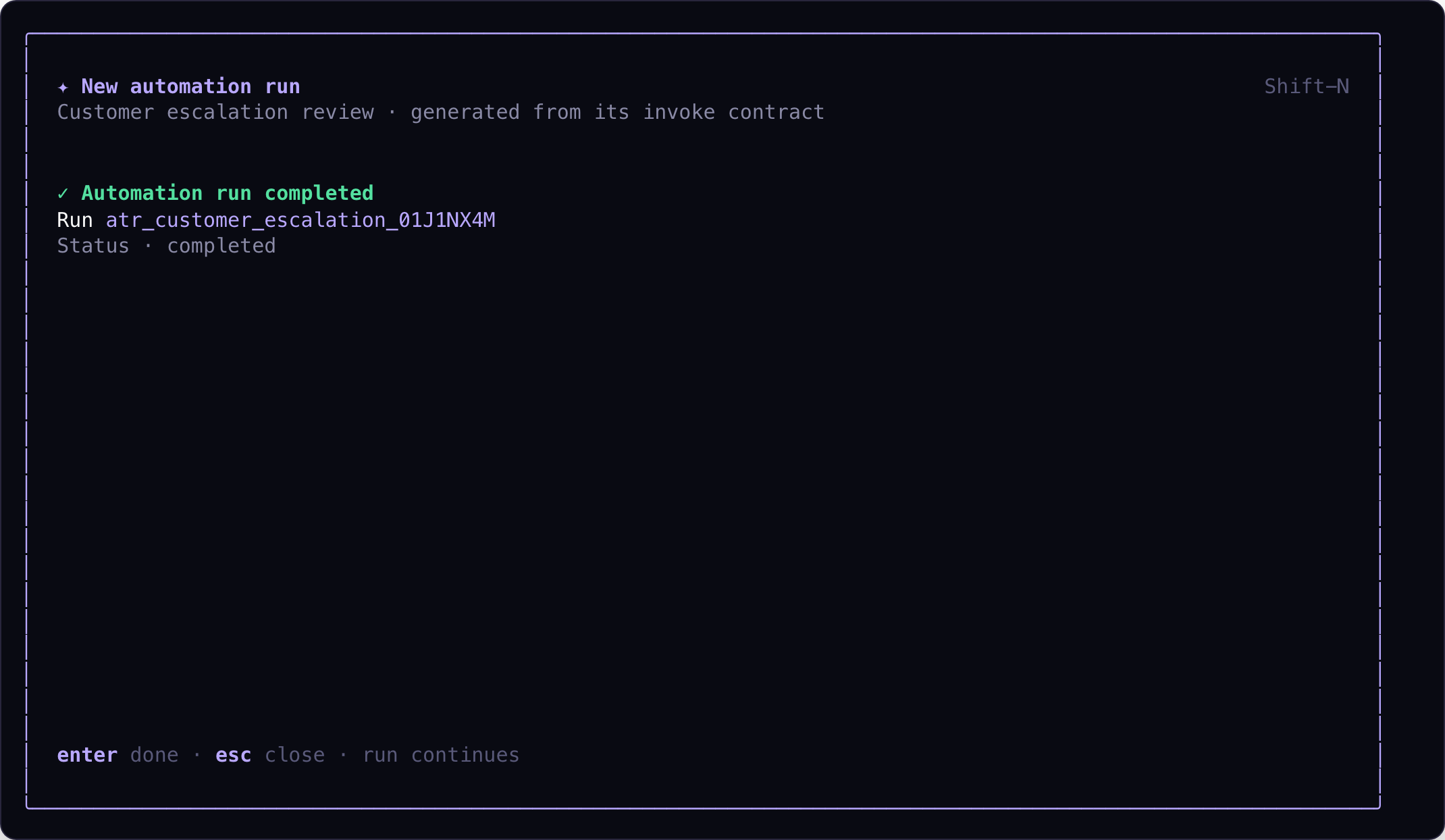
Review the completed fields and press Enter on the last field to create the
run. Astrorun shows the durable run ID and continues polling until the platform
reports completion or failure.
Panels and application
| Key | Action |
|---|---|
s |
Open settings |
? |
Open key-binding help |
q / Esc |
Close the active panel, or quit from the dashboard |
Ctrl+C |
Quit |
Settings
Press s to configure Astrorun:
| Setting | Purpose |
|---|---|
| Processor | Default harness for new work |
| Mode | Default headless or live execution mode |
| Review required | Hold candidates and drafts for human approval, or enqueue and apply automatically |
| Theme | Terminal color theme |
Use Up / Down and Enter to change a setting. Press r to probe installed harnesses and tmux again, or t to cycle the theme.
Processor choices and probe results are cached so startup does not repeatedly invoke every CLI. Re-probe after installing a harness, fixing its executable path, or installing tmux. Mode and review-policy changes take effect on the next Astrorun launch.
Durability and recovery
Astrorun stores its state below the CLI's user configuration directory:
~/.config/archagent/autorun/
├── settings.json
├── logs/astrorun.log
└── work-items/
    └── done/
The work-item store is the source of truth for persisted review and completion records. Those records preserve their source, processor, current response, earlier rejected responses, action metadata, outcome, and live-session information. Completed and archived records move into done/ instead of disappearing from disk.
On startup Astrorun reconciles durable records with live processes. If a response is already saved, it restores that item to review rather than silently drafting it again. If a live process ended while the dashboard was away, Astrorun finalizes or recovers the item from its recorded session state.
Manual tasks, saved review drafts, completed history, and live-session records survive a restart. An ordinary thread item that was only queued or running headlessly is not yet durable; after a restart, polling may rediscover it as a candidate. Use the maintenance commands below only when you intentionally want to remove persisted state.
Maintenance commands
Clean up live sessions
archagent astrorun --cleanup
This kills Astrorun's live tmux sessions and prunes their live-session records, then exits. It is useful after a crash or stale tmux state. It does not clear the full work queue or completed history.
Clear the item store
archagent astrorun clear
This is a destructive reset. Astrorun first ends live sessions, then clears active work items and completed history. It leaves CLI authentication and Astrorun settings in place. Use it when you want a completely empty dashboard, not as routine recovery for one failed item.
Troubleshooting
No thread work appears
Check that:
archagent auth statussucceeds and the current directory is linked to the intended app.- The thread includes an agent you own or can use.
- The latest new activity is from a human; Astrorun does not create work in response to its own agent message.
- The activity is recent or follows an earlier reply from the selected agent. A cold start does not replay unlimited historical activity.
- With review required, you looked under Candidates and pressed
Enterto enqueue the item.
A processor is unavailable
Run that harness directly to verify it is installed and authenticated, then open settings and press r to re-probe. You can always select AstroDev because it ships with the CLI.
Authentication failures, exhausted credits, provider limits, and nonzero harness exits appear as failed work rather than platform login failures. Inspect the item's error and the Astrorun log.
Live mode is unavailable
Live mode requires both tmux and a live-capable processor. Install tmux, select Claude Code or Codex, then press r in settings. AstroDev and Rovo Dev currently run headlessly in Astrorun.
An item still says it is live
Detaching intentionally keeps the session live. Use archagent astrorun attach to inspect recorded sessions, reattach and exit the harness, press e from the dashboard, or use archagent astrorun --cleanup for stale live state.
Astrorun appears stuck
The selected harness may still be running, waiting on a provider, or finalizing a live transcript. Check the detail pane, then inspect:
~/.config/archagent/autorun/logs/astrorun.log
The log records item ids, lifecycle transitions, processor selection, durable-store decisions, live-session reconciliation, and errors. Use the item id from the dashboard to follow one work item across those events.
How Astrorun relates to other surfaces
| Surface | Role |
|---|---|
| Astrorun | Local discovery, processing, review, and application queue for agent work |
| AstroDev | Interactive or headless local coding agent; one of Astrorun's available processors |
| Claude Code / Codex / Rovo Dev | Optional local harnesses Astrorun can invoke with their existing credentials |
| Agent routines and automations | Server-side scheduled or event-driven work that continues without your local terminal |
CLI verbs (list, deploy, create, …) |
Create and operate platform objects directly |
| ArchAgents Portal | Review agents, threads, activity, and organization settings in the browser |
Use Astrorun when you want a local inbox of agent work with a durable review gate. Use AstroDev for a focused coding conversation, and use automations or workflows for server-side execution.
Typical workflows
Review agent thread replies
cd my-project
archagent astrorun
Select a candidate and press Enter. Review the draft, press a to post it, or press x and explain what should change. Use h to compare earlier rejected replies with the latest result.
Run a one-off local task
Press n, enter the work, use Shift+Tab to select a processor, and press Enter. Review the response and approve it to mark the task complete.
Take a draft live
Select a compatible item and press t. Investigate or refine it in Claude Code or Codex. Detach if it should keep running; exit the harness when you want Astrorun to extract the updated result and return it to review.
Resume after a restart
Start archagent astrorun again. Manual tasks, saved review items, and completed history reappear automatically; polling may rediscover interrupted headless thread work as a candidate. If a live tmux session is still running, press t on the item or use archagent astrorun attach.
Where to go next
- CLI — installation, authentication, project linking, and day-to-day commands.
- AstroDev — understand the built-in coding harness Astrorun can use for headless work.
- Agents — configure the identities Astrorun uses to reply in threads.
- Automations — move suitable work from a local queue to server-side execution.
- Workflows — build multi-step, persistent agent processes.
Have feedback?
Help us make this page even more useful.
Tell us what you'd like to see expanded, which examples would help, or what workflow you want covered next. Every message gets read.