
Workflows
Design multi-step flows for approvals, handoffs, branching, and longer-running work.
Overview
A workflow is a multi-step process you can call from a routine, an automation, or a script. Each step is a node; nodes can branch, retry, wait for approval, or hand off to other workflows. Use one when "do X" turns into "do X, then if Y, do Z, then ask a human."
The split with routines:
- A routine decides when the work happens.
- A workflow describes how it happens, step by step.
Good fits for a workflow:
- conditional branching ("if amount > $500, route to manager")
- approvals ("wait for a human reply before continuing")
- retries with backoff
- longer business processes that need to survive restarts
- handoffs between agents or between agents and people
A concrete example
Imagine a support agent that handles refund requests.
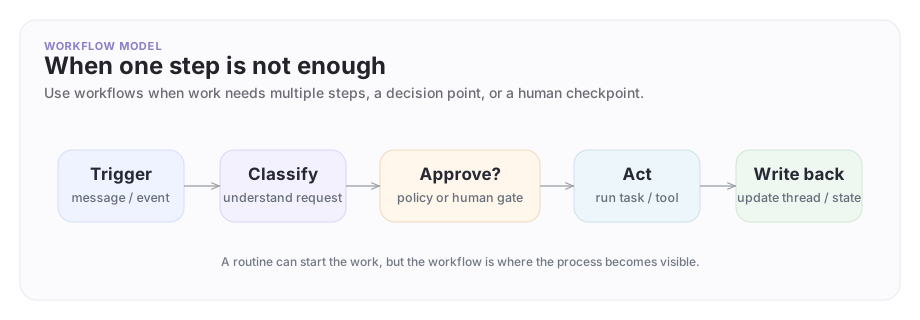
The routine might react when a new message looks like a refund issue. The workflow could then:
- classify the request
- check account details
- ask for human approval if the amount is large
- send the final response
- write the outcome back to the thread
- the routine notices the moment
- the workflow runs the process
The workflow shape
Use a workflow when the work needs to stay visible as a process: multiple steps, decisions, approvals, or handoffs.
Building a workflow
File-backed workflow configs
Use the CLI or your coding agent to create and manage workflows as config-backed files:
archagent list configkinds
archagent describe configsamples workflow --to-file ./tmp/workflow.sample.yaml
archagent validate configs -k workflow -f ./tmp/workflow.sample.yaml
After you have a workflow shape you want to keep:
archagent sync configs
archagent deploy configs
This is the primary path for workflows. They belong in source control where your team can review and iterate on them.
When you save a workflow, the platform runs semantic validation in addition to schema validation. It checks that node references resolve, that data flowing between nodes has compatible shapes, and that conditional branches reach a terminal node. Errors are surfaced before the workflow is allowed to deploy, so broken graphs don't reach the runtime.
Portal editor
ArchAgents Portal also provides a visual workflow builder for reviewing and editing workflows:
- Open Workflows in the portal.
- Click New Workflow and enter a name.
- Add nodes to the canvas.
- Connect nodes to define execution order.
- Save and test the flow.
The editor includes:
- Run as User selector so you can choose who the workflow runs as
- Debug mode for inspecting workflow inputs and outputs
- Auto-versioning for safe iteration and rollback
Use the portal editor when you want a visual overview of the flow or need to quickly test whether a sequence makes sense.
Workflow execution
Workflows can be triggered three ways:
- Agent routines: attach a workflow to an agent behavior
- Automations: run a workflow on a schedule or important event
- Direct run: test a workflow from the portal while you build it
When a workflow starts, it receives the data from whatever triggered it.
That makes workflows reusable. You can test one from the CLI or portal, then attach it to a routine or automation once the flow is clear.
Node types
Workflows are built from nodes. Each node does one job in the flow. The node kind names below are the kind values you use in workflow YAML.
| Node kind | What it does |
|---|---|
| WorkflowTrigger | The entry point; validates the incoming trigger and hands its payload to the flow |
| WorkflowScript | Run an ArchAgents script for custom logic |
| WorkflowTransform | Reshape the payload between steps with an expression, including a Liquid template that renders structured output |
| WorkflowHTTP | Make an HTTP request to an external API |
| WorkflowChatCompletion | Call an LLM to generate text or make a decision |
| WorkflowSwitch | Branch the flow based on a condition |
| WorkflowLoop | Iterate over items and run a subflow for each |
| WorkflowDelay | Wait for a specified duration before continuing |
| WorkflowCommand | Invoke a registered command and continue with its result |
| WorkflowAsyncCommand | Invoke a command asynchronously and yield until it completes |
| WorkflowEmbedAgent | Hand a step to an embedded agent and route on success or error |
| WorkflowEventEmit | Emit a structured platform event |
| WorkflowEmail | Send an email |
| WorkflowWebhook | Send a signed webhook (Standard Webhooks, HMAC-SHA256) to an external endpoint |
A workflow's data list holds data nodes: reusable inputs that flow nodes reference by name. The data node kinds are Script, ScriptTest, LiquidTemplate, JsonSchema, AgentMessageSchema, ServerTool, MCPServer, OAuthClient, and ScriptAuthClient.
Most workflows use a small subset of these. A typical flow might be: WorkflowTrigger -> WorkflowHTTP -> WorkflowScript -> WorkflowSwitch -> WorkflowEmail.
Workflow configs are YAML files. Use archagent describe configsamples workflow to see the full structure. The portal editor provides a visual view for reviewing and editing workflows.
Scripts and expressions inside workflows
Workflows support three ways to compute a value at a node input:
- Scripts for custom logic and multi-step data handling
- Expressions for simple conditions and field access
- Dynamic fields for inline
{{expression}}interpolation in otherwise-static values
This gives you a practical mix: visual structure for the overall flow, and code only where it adds real value.
Aim for workflows where the high-level process stays visible and code shows up only where it earns its place.
Dynamic fields
A dynamic field is a static value with {{expression}} placeholders that get evaluated at runtime. Use it when you want a literal-shaped input (a string, a URL, a header value) that needs to interpolate one or two pieces of upstream data without writing a script node.
url: "https://api.example.com/orders/{{ steps.parse_input.order_id }}"
headers:
 Authorization: "Bearer {{ env.API_TOKEN }}"
The portal property panel exposes dynamic fields as a value kind alongside literal, expression, and script. Reach for dynamic when you need string concatenation or simple substitution; use expression when you need a single typed value; use script when the logic needs more than one step.
Attaching a workflow to an agent routine
Once the workflow exists as a config, a routine can point at it by config id:
archagent update agentroutine <routine_id> \
 --handler-type workflow_graph \
 --config <workflow_config_id>
That split is the part many teams miss:
- the workflow holds the process definition
- the routine decides when that process should run
A workflow can also be a single step inside a chain routine (handler_type: chain). When it runs as a chain step, its input is wrapped as {trigger: <event>, inputs: {<step_name>: <output>,...}}, so ScriptNodes inside the workflow address the trigger via $.trigger.<field> and upstream chain-step outputs via $.inputs.<step_name>. Workflows run directly from a routine (not as a chain step) see the raw event payload at $ as usual. See Scripts → Chain-step input shape.
When to use workflows vs routines
| Scenario | Use |
|---|---|
| Single event → single action | Routine |
| Multi-step orchestration | Workflow |
| Conditional branching | Workflow |
| Data transformation pipeline | Workflow |
| Scheduled batch processing | Automation → workflow |
| Human approval gate | Workflow |
Routines decide when work should run. Workflows define what should happen once execution begins.
If you are unsure which one you need, ask the simpler question:
- "Do I just need the agent to react?" Use a routine.
- "Do I need a visible process with several steps?" Use a workflow.
Debugging workflow runs
When a workflow fails, the run record carries structured diagnostics that point at the exact node and operation that broke. Use the CLI to inspect:
archagent list automationruns --automation <id> --status failed
archagent describe automationrun <run_id>
Each failed step in the run reports:
- the node that failed
- the operation it was performing
- the original error message from the script, HTTP call, or LLM provider
- the input shape the node received
Script failures inside ScriptNode propagate the underlying script error rather than collapsing it into a generic "node failed" message. That makes it possible to fix a workflow without re-running it locally to reproduce the issue.
The same diagnostics show up in the activity feed for each routine or automation run that touched the workflow.
Where to go next
- Use
archagent describe configsamples workflowto see the full YAML structure. - Read Scripts for the custom logic you can embed inside workflow nodes.
- Read Automations for scheduled and event-triggered workflows.
- Read Agents for how routines connect workflows to agent behavior.
- Read Activity Feed for inspecting workflow runs.
Have feedback?
Help us make this page even more useful.
Tell us what you'd like to see expanded, which examples would help, or what workflow you want covered next. Every message gets read.