
Workflows
Design multi-step flows for approvals, handoffs, branching, and longer-running work.
Overview
Workflows let you describe a process across multiple steps.
Use them when one routine or one script is not enough. They are a good fit for:
- handoffs between steps
- conditional branching
- retries
- approvals
- longer business processes
A workflow is where you spell out the sequence of work.
- a routine decides when something should happen
- a workflow describes how it should happen step by step
If an agent needs to do more than one thing, wait for approval, branch, retry, or hand work off across several stages, use a workflow.
A concrete example
Imagine a support agent that handles refund requests.
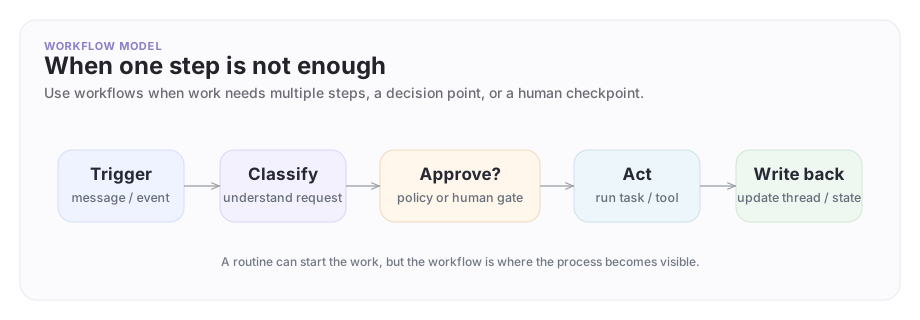
The routine might react when a new message looks like a refund issue. The workflow could then:
- classify the request
- check account details
- ask for human approval if the amount is large
- send the final response
- write the outcome back to the thread
- the routine notices the moment
- the workflow runs the process
The workflow shape
Use a workflow when the work needs to stay visible as a process: multiple steps, decisions, approvals, or handoffs.
Building a workflow
File-backed workflow configs
Use the CLI or your coding agent to create and manage workflows as config-backed files:
archastro configs kinds
archastro configs sample workflow --to-file ./tmp/workflow.sample.yaml
archastro configs validate -k workflow -f ./tmp/workflow.sample.yaml
After you have a workflow shape you want to keep:
archastro configs sync
archastro configs deploy
This is the primary path for workflows — they belong in source control where your team can review and iterate on them.
Portal editor
The developer portal also provides a visual workflow builder for reviewing and editing workflows:
- Open Workflows in the portal.
- Click New Workflow and enter a name.
- Add nodes to the canvas.
- Connect nodes to define execution order.
- Save and test the flow.
The editor includes:
- Run as User selector so you can choose who the workflow runs as
- Debug mode for inspecting workflow inputs and outputs
- Auto-versioning for safe iteration and rollback
Use the portal editor when you want a visual overview of the flow or need to quickly test whether a sequence makes sense.
Workflow execution
Workflows can be triggered three ways:
- Agent routines — attach a workflow to an agent behavior
- Automations — run a workflow on a schedule or important event
- Direct run — test a workflow from the portal while you build it
When a workflow starts, it receives the data from whatever triggered it.
That makes workflows reusable. You can test one from the CLI or portal, then attach it to a routine or automation once the flow is clear.
Node types
Workflows are built from nodes. Each node does one job in the flow.
| Node | What it does |
|---|---|
| ScriptNode | Run an ArchAstro script for custom logic or data transformation |
| HttpNode | Make an HTTP request to an external API |
| ChatCompletionNode | Call an LLM to generate text or make a decision |
| SwitchNode | Branch the flow based on a condition |
| LoopNode | Iterate over items and run a subflow for each |
| DelayNode | Wait for a specified duration before continuing |
| EmailNode | Send an email |
| WebhookNode | Wait for an incoming webhook callback |
| TemplateNode | Render a Liquid template into structured output |
| DataNode | Transform or reshape data between steps |
| EntryNode | The starting point of the workflow |
Most workflows use a small subset of these. A typical flow might be: EntryNode -> HttpNode -> ScriptNode -> SwitchNode -> EmailNode.
Workflow configs are YAML files. Use archastro configs sample workflow to see the full structure. The portal editor provides a visual view for reviewing and editing workflows.
Scripts and expressions inside workflows
Workflows support both scripts and lightweight expressions:
- Scripts for custom logic and multi-step data handling
- Expressions for simple conditions and field access
This gives you a practical mix: visual structure for the overall flow, and code only where it adds real value.
A good workflow keeps the high-level process visible and only drops into code for the genuinely custom parts.
Attaching a workflow to an agent routine
Once the workflow exists as a config, a routine can point at it by config id:
archastro update agentroutine <routine_id> \
  --handler-type workflow_graph \
  --config-id <workflow_config_id>
That split is the part many teams miss:
- the workflow holds the process definition
- the routine decides when that process should run
When to use workflows vs routines
| Scenario | Use |
|---|---|
| Single event → single action | Routine |
| Multi-step orchestration | Workflow |
| Conditional branching | Workflow |
| Data transformation pipeline | Workflow |
| Scheduled batch processing | Automation → workflow |
| Human approval gate | Workflow |
Routines decide when work should run. Workflows define what should happen once execution begins.
If you are unsure which one you need, ask the simpler question:
- "Do I just need the agent to react?" Use a routine.
- "Do I need a visible process with several steps?" Use a workflow.
Where to go next
- Use
archastro configs sample workflowto see the full YAML structure. - Read Scripts for the custom logic you can embed inside workflow nodes.
- Read Automations for scheduled and event-triggered workflows.
- Read Agents for how routines connect workflows to agent behavior.
Need something clearer?
Tell us where this page still falls short.
If a step is confusing, a diagram is misleading, or a workflow needs a better example, send feedback directly and we will tighten it.